Send As Email Guide: Master The Art In 2026
February 13, 2026
Mastering the send as email feature is a game-changer for professionals and teams in 2026. As digital communication becomes more central to business operations, the ability to delegate email tasks efficiently and securely is essential.
The send as email function allows individuals to send messages on behalf of others, streamlining workflows and ensuring every communication aligns with your organisation’s professional standards. This capability becomes especially valuable for business leaders, executive assistants, and collaborative teams striving for seamless communication and consistent branding.
In this guide, you will find clear, step-by-step instructions to master the send as email feature in 2026. We will cover essential permissions, setup processes, platform-specific walkthroughs, advanced delegation strategies, security considerations, and troubleshooting tips to help you communicate with confidence.
Understanding 'Send As' and 'Send on Behalf' Permissions
Mastering the nuances of 'Send As' and 'Send on Behalf' permissions is vital for anyone looking to use the send as email function effectively in 2026. These permissions are the backbone of delegated communication, shaping how emails are sent, received, and tracked across professional environments.
What Are 'Send As' and 'Send on Behalf' Permissions?
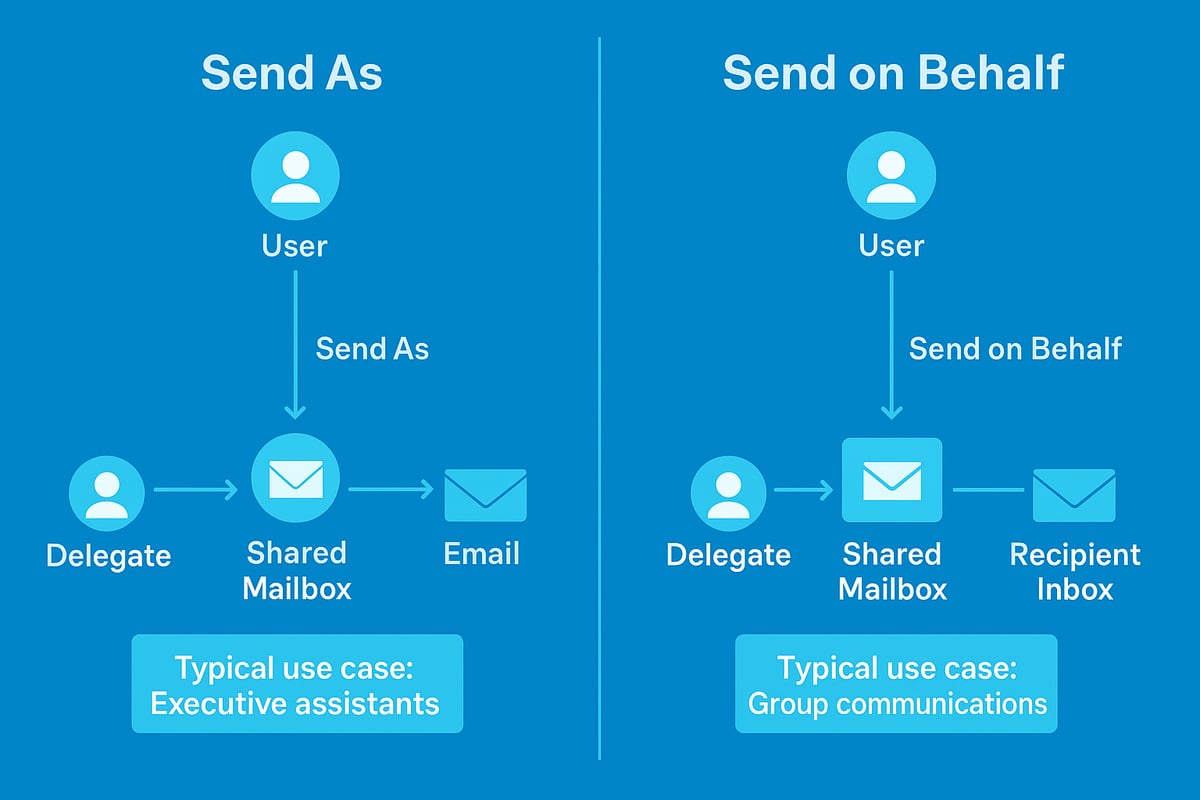
'Send As' and 'Send on Behalf' are two distinct permissions that allow a user to send as email for another individual or group. With 'Send As', the delegate's message appears as if it came directly from the mailbox owner. In contrast, 'Send on Behalf' shows both the delegate and the mailbox owner in the sender line, making the delegation transparent.
| Permission Type | Sender Displayed | Recipient Experience | Use Case Example |
|---|---|---|---|
| Send As | Mailbox owner's name | Appears sent by owner | Executive assistant replying |
| Send on Behalf | Delegate on behalf of owner | Shows both names | PA scheduling for manager |
Consider this: an executive assistant using send as email can reply to clients with the executive's identity, ensuring seamless communication. In contrast, a project coordinator might use 'Send on Behalf' to keep team communications transparent, clarifying who took action.
Modern business relies heavily on proper delegation. Shared mailboxes for departments, group communications, and executive support all benefit from these permissions. For example, legal and financial firms often require strict audit trails, so knowing who sent what—and under which authority—is crucial. Microsoft Exchange and Office 365 remain leading platforms for managing these permissions, offering robust controls for send as email delegation.
Real-world scenarios range from assistants managing busy inboxes to teams collaborating through shared addresses. For practical strategies on effective delegation, consider exploring Email Delegation for Lawyers, which highlights how professionals can optimise their workflow with these permissions.
Why Permissions Matter in 2026
In 2026, the importance of send as email permissions has grown significantly due to rising privacy concerns and evolving regulations. Organisations are now held to higher standards for data protection, especially when delegating email access in hybrid and remote workplaces.
Recent statistics show that delegated email usage has increased by 45% over the past two years, driven by the need for efficient, secure workflows. However, improper management of send as email permissions can expose businesses to risks like data breaches, loss of accountability, and compliance failures.
User accountability is vital. Every send as email transaction must be traceable, ensuring that each action is attributed to the correct party. This traceability supports compliance with regulations such as GDPR and the UK Data Protection Act.
Organisations benefit from well-managed permissions through improved efficiency, continuity, and professionalism. Enterprises report smoother handovers during staff transitions and better brand consistency when using send as email features. In regulated sectors, maintaining detailed audit trails for delegated emails is not just best practice, it is a legal requirement.
Ultimately, understanding and managing these permissions is essential for any business aiming to protect its reputation, maintain compliance, and foster seamless teamwork.
Preparing to Use 'Send As' Email: Prerequisites and Setup
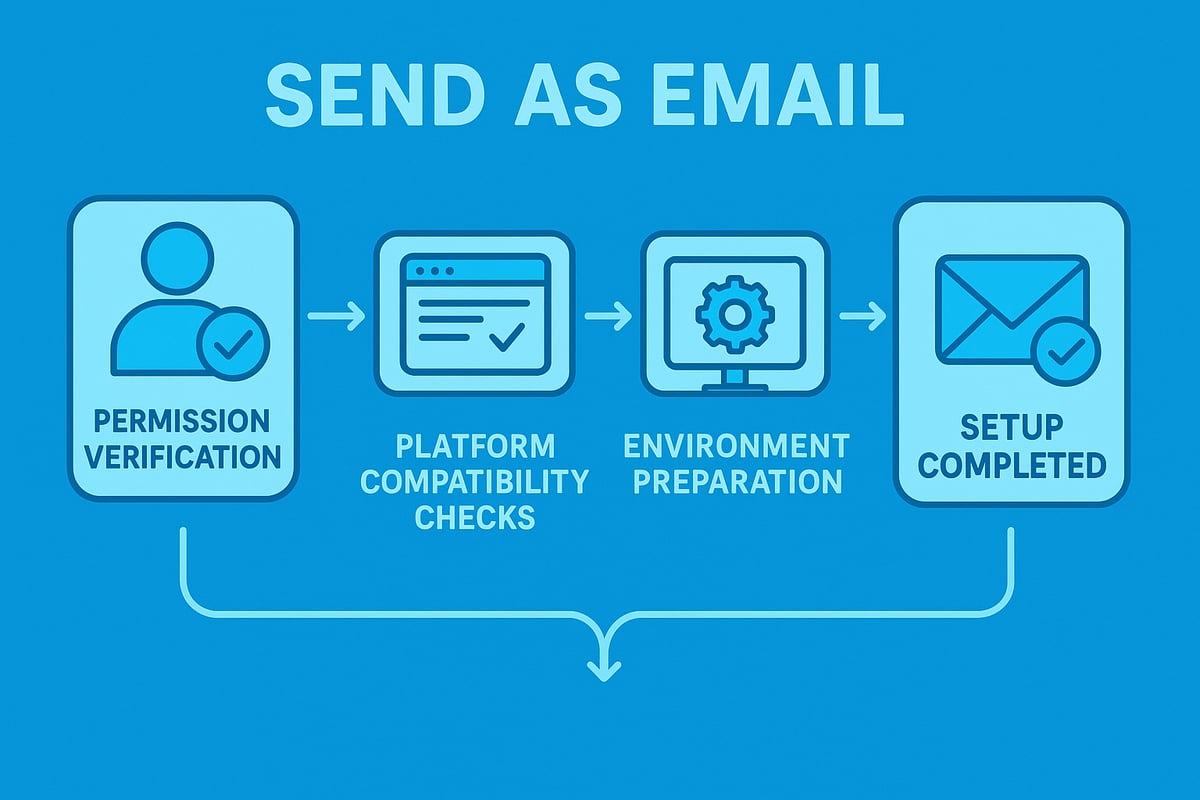
Getting started with the send as email feature requires careful preparation. Ensuring correct permissions, compatible platforms, and a secure environment is essential for smooth and secure delegation. Let us guide you through every step before you send as email for the first time.
Verifying Permissions and Access
Before you can use the send as email function, you must confirm you have the appropriate permissions. Typically, these permissions are granted by an administrator or the mailbox owner. If you are unsure, start by checking your current access in your email platform’s settings or admin console.
For example, in Office 365:
- Navigate to the admin centre and select the relevant user or mailbox.
- Look under “Mail delegation” to view or assign send as permissions.
- Use PowerShell with the
Get-MailboxPermissionorGet-RecipientPermissioncmdlet to verify access.
If you do not have the necessary permissions, request them from your administrator. Most organisations require a formal request, especially for shared or executive mailboxes. For Google Workspace, the process is similar but managed in the Admin console under user settings.
It is vital to confirm your send as email permissions before attempting to delegate. Incorrect permissions can cause errors or result in unauthorised access. For a detailed walkthrough on setting up your account and ensuring prerequisites are met, see Setting up email accounts.
Platform Requirements and Compatibility
The send as email feature is supported across major platforms in 2026, but requirements vary. Outlook (web, desktop, mobile), Gmail, and other clients like Apple Mail and Thunderbird offer different levels of support.
| Platform | Supported (2026) | Notes |
|---|---|---|
| Outlook (Web) | Yes | Office 365/Exchange accounts only |
| Outlook (Desktop) | Yes | Update to latest version recommended |
| Outlook (Mobile) | Yes | Some limitations on shared mailboxes |
| Gmail | Yes | Requires verification of alternate |
| Apple Mail | Yes | Manual configuration may be needed |
| Thunderbird | Yes | Supports both permissions |
Be aware that personal accounts (like @outlook.com) may not support send as email delegation. Always check for software updates, as new security features or changes in delegated permissions may impact compatibility.
Security settings can also affect your ability to delegate. Ensure multi-factor authentication is enabled and review any conditional access policies. Office 365 and Exchange Online have specific prerequisites, including licensing requirements and admin rights. Confirm these before proceeding.
Setting Up Your Environment
Once permissions and platform support are confirmed, prepare your environment for sending as another user or group. Start by ensuring your device and browser are compatible with the latest version of your chosen platform.
Update your email client and operating system to access the most recent features and security patches. Before sending critical emails, test the send as email feature with a non-essential message. This allows you to catch any configuration issues early.
Back up important settings or contacts to prevent data loss during setup. If you encounter problems, consult your IT team or check platform-specific support resources for troubleshooting tips.
Taking the time to set up your environment properly minimises disruption and ensures a seamless experience when you send as email.
Step-by-Step Guide: Sending As Another User or Group
Mastering the send as email function is essential for professionals aiming to streamline communication and uphold organisational standards. Whether you are delegating tasks, managing shared mailboxes, or representing a group, following the correct steps is vital for success.
Sending 'As' or 'On Behalf Of' in Outlook (Web, Desktop, Mobile)
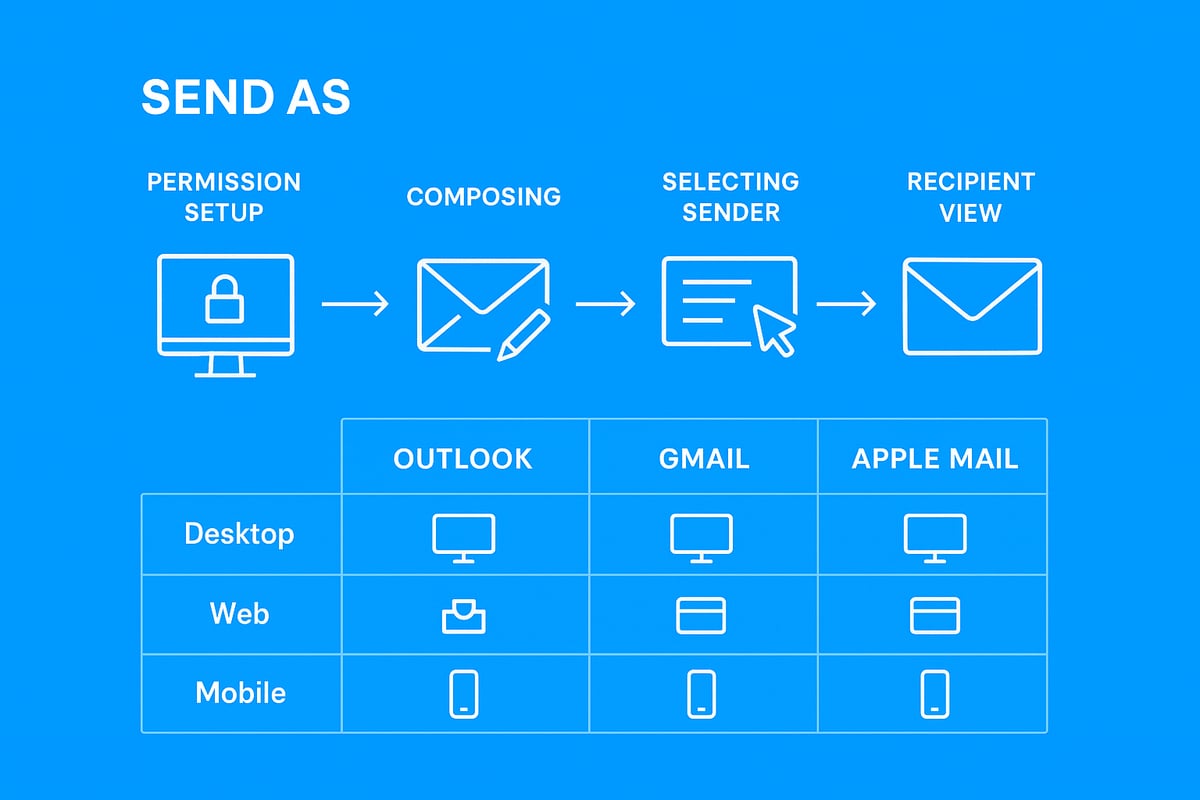
Outlook remains a popular choice for send as email functionality. Each interface offers a slightly different experience, but the process follows a similar flow.
Outlook on the Web:
- Open Outlook in your browser.
- Click 'New Message' to compose an email.
- Select the 'From' field. If it is not visible, click the three dots (...) and choose 'Show From'.
- Click 'From' and select the alternate user or group address.
- Compose your message and send.
Outlook Desktop:
- Launch the Outlook application.
- Click 'New Email'.
- In the message window, select 'Options' and then 'From'.
- The 'From' field appears. Choose the appropriate sender address.
- Complete your message and send.
Outlook Mobile:
- Open the Outlook app.
- Tap the compose icon.
- Tap your account at the top and select the alternate account (if configured).
- Finalise your message and send.
When using send as email in Outlook, recipients see the chosen sender in the 'From' field. If you send on behalf of someone, the recipient will see both your name and the mailbox you are representing.
For group communication, select the shared mailbox or group from the 'From' dropdown. Test with a non-critical message first to confirm your configuration.
Using 'Send As' in Google Workspace (Gmail)
Gmail also supports send as email, though the setup process varies from Outlook. Begin by configuring alternate email addresses.
Steps to enable 'Send As' in Gmail:
- Open Gmail and go to 'Settings'.
- Navigate to the 'Accounts and Import' tab.
- Under 'Send mail as', click 'Add another email address'.
- Enter the name and email you wish to send as.
- Gmail will send a verification code to the alternate address. Enter the code to confirm.
- When composing, use the 'From' dropdown to select the desired sender.
Gmail's send as email feature is ideal for managing multiple identities within a single inbox. However, some limitations exist compared to Outlook, such as the need for verification and fewer options for shared mailboxes.
The recipient will see the selected sender in the 'From' field, maintaining professionalism and clarity. Always double-check your settings before sending to ensure accuracy.
Sending As in Other Popular Platforms
Besides Outlook and Gmail, several other email clients support send as email. Understanding the nuances of each ensures seamless delegation.
Apple Mail:
- Add the delegated account in 'Mail' settings.
- When composing, select the correct address from the 'From' menu.
Thunderbird:
- Create a new identity under account settings.
- Choose the appropriate identity when sending.
Collaborative Tools:
- Some platforms, like Slack, allow send as email integrations for group messages or notifications.
- Always test delegated sending in these environments to avoid confusion.
Cross-platform compatibility is increasingly important in 2026. Confirm that permissions and settings are correctly applied on all devices, especially when using send as email across multiple platforms.
A quick comparison:
| Platform | Setup Complexity | Shared Mailbox Support | Mobile Support |
|---|---|---|---|
| Outlook | Moderate | Yes | Yes |
| Gmail | Easy | Limited | Yes |
| Apple Mail | Moderate | Yes | Yes |
| Thunderbird | Moderate | Yes | Yes |
Best Practices for Seamless Sending
To maximise the benefits of send as email, follow these best practices:
- Always double-check the 'From' address before sending.
- Inform recipients when you are sending on behalf of someone else.
- Maintain consistent branding and professional signatures. For detailed guidance, see Professional email signatures.
- Test with internal messages before external communication.
- Use clear subject lines to avoid confusion.
- Back up your settings and document your send as email configurations.
A sample email header using send as email:
From: "Jane Smith" <[email protected]>
Sent by: [email protected]
Consistency in signatures and sender information reinforces trust and professionalism. Always stay updated with platform changes to maintain effective send as email practices.
Advanced Strategies for Efficient Email Delegation
Unlocking the full potential of the send as email feature requires more than basic setup. Advanced strategies can transform how teams collaborate, manage multiple accounts, and maintain compliance in complex business environments. Explore how to streamline operations and ensure secure, professional communication with these expert techniques.
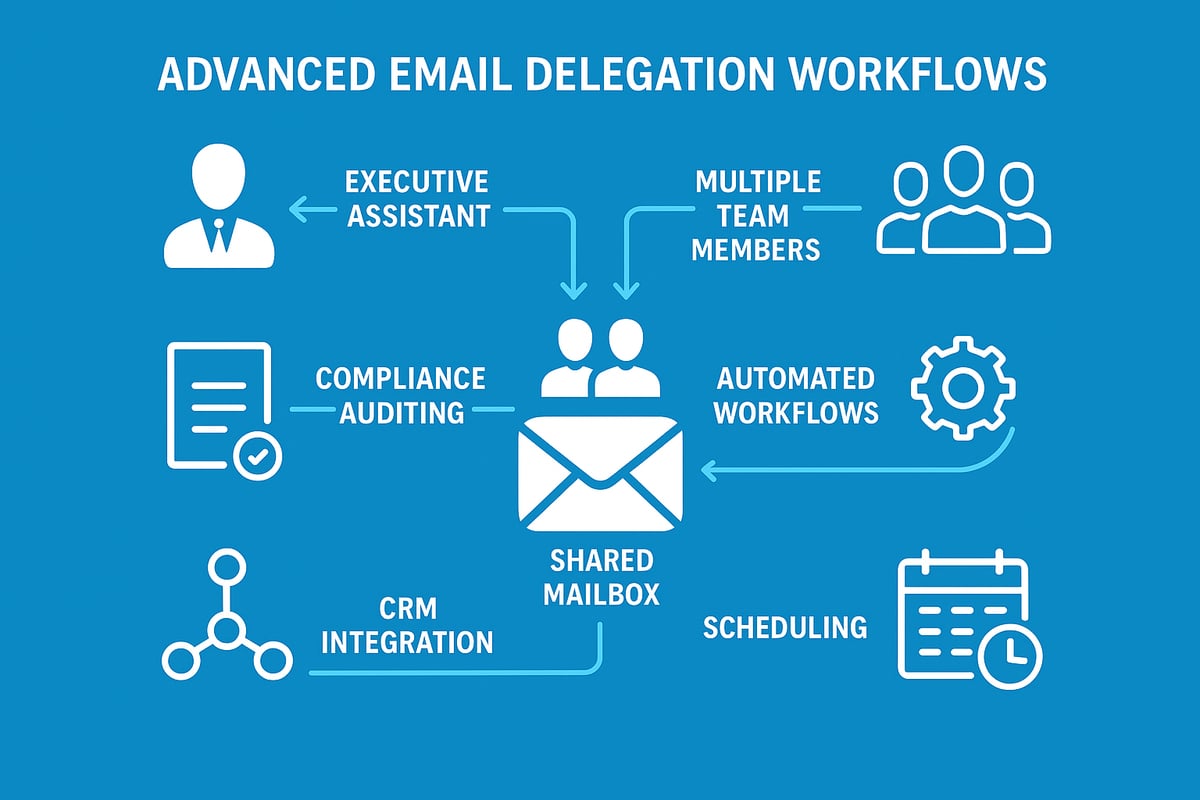
Streamlining Team Communication
Efficient team communication is built on the foundation of shared resources. By implementing shared mailboxes, teams can use the send as email capability to manage group conversations, customer service queries, or project updates without confusion over individual senders.
For example, an executive assistant can use send as email to respond to messages on behalf of a manager, ensuring prompt replies and consistent tone. Automating responses, such as out-of-office notifications or standard acknowledgements, can further streamline workflows and reduce manual effort.
Consider scheduling emails on behalf of others to maintain a timely communication flow, especially across different time zones. Before deploying these strategies, always test with non-critical emails to ensure the correct sender identity and avoid miscommunication.
Managing Multiple Delegations
Handling multiple send as email permissions requires careful organisation. Agencies or departments often manage several delegated accounts, each with its own access level and communication needs. To avoid confusion, create a structured list or table of delegated accounts, noting their permissions and priority:
| Account/Group | Permission Type | Priority Level | Notes |
|---|---|---|---|
| Marketing Team | Send As | High | Weekly newsletter |
| Client A | Send On Behalf | Medium | Project updates |
| HR Shared Mailbox | Send As | Low | Internal queries |
Prioritise high-importance accounts and regularly review permissions. Use colour coding or folders in your email client to keep delegated mail streams separate. This ensures that send as email does not become a source of mistakes, especially when representing multiple clients or departments.
Auditing and Monitoring Delegated Email Activity
Maintaining accountability is crucial when using send as email. Organisations should implement tracking and monitoring to ensure compliance with internal policies and industry regulations. Most enterprise platforms provide reporting tools to log sent messages, capture sender identities, and generate audit trails.
Regular audits are especially important in sectors like finance or healthcare, where delegated email can impact legal compliance. Schedule periodic reviews of delegated accounts to verify permissions and identify any unauthorised activity. Transparent monitoring reassures both senders and recipients that communication remains secure and professional.
Use built-in analytics to spot trends or anomalies, such as unusual sending patterns or a spike in send as email activity. This proactive approach can prevent issues before they escalate.
Integrating Delegation with Other Business Tools
To maximise efficiency, integrate send as email capabilities with other business-critical platforms. Connect delegated accounts to CRM systems, project management tools, or collaboration suites to automate workflows and centralise communication.
For example, syncing a shared mailbox with your CRM allows team members to track client conversations without switching applications. Project managers can auto-forward delegated emails into task boards, ensuring nothing falls through the cracks.
As email delegation evolves, adopting interoperable digital identity architectures can further enhance security and flexibility. For a deeper dive into future-proof delegation strategies, explore this Digital Identity Delegation Architecture resource, which outlines frameworks for seamless and compliant integration.
By leveraging these advanced approaches, your team can fully harness the power of send as email, driving productivity and maintaining robust security controls.
Security, Compliance, and Privacy Considerations
With the growing use of send as email in business, security and compliance are more crucial than ever. Organisations must protect sensitive data, follow strict regulations, and ensure users understand the risks. A robust approach keeps email delegation safe and compliant, helping avoid costly mistakes.
Protecting Sensitive Data
Improper use of send as email can expose sensitive information or lead to impersonation. When permissions are not managed carefully, confidential data may be accessed by the wrong users or sent to unintended recipients. The risk of data leaks increases, especially if devices are unsecured or credentials are weak.
To safeguard against these threats, apply security best practices:
- Use strong, unique passwords and enable multi-factor authentication.
- Limit send as email access to only those who genuinely need it.
- Regularly review and revoke unnecessary permissions.
- Keep software and platforms up to date for the latest security patches.
For a comprehensive overview of the latest security priorities, review Email Security Priorities for 2026. Following these steps helps prevent breaches and protects your organisational reputation.
Regulatory Compliance in 2026
The regulatory landscape for send as email is evolving rapidly. Laws like GDPR and the UK Data Protection Act require strict controls over who can access, send, and store personal data. Organisations must maintain clear documentation and audit trails for every delegated email action.
Compliance involves:
- Recording who granted send as email permissions and when.
- Keeping detailed logs of sent messages for audit purposes.
- Ensuring all delegated actions are traceable to individual users.
- Regularly updating policies to reflect changes in regulations.
Upcoming changes to authentication protocols will also impact compliance. To stay ahead, explore Email Authentication Requirements 2026, which details evolving standards for secure business communications.
User Training and Awareness
Human error is a leading cause of security incidents in send as email scenarios. Even with robust controls, users must be trained to recognise risks like phishing or social engineering. Ongoing education helps staff understand the importance of proper delegation and the potential consequences of mistakes.
Effective training includes:
- Regular workshops on send as email protocols.
- Simulated phishing campaigns to build awareness.
- Clear guidelines for reporting suspicious activity.
- Company-wide security awareness programmes.
By investing in user training, organisations reduce the risk of accidental data loss or unauthorised access. Empowered staff are the first line of defence, ensuring send as email remains a secure and compliant tool for business communication.
Troubleshooting Common 'Send As' Email Issues
Even the most experienced users encounter challenges when using the send as email feature. Troubleshooting these issues can ensure smooth workflow and professional communication. Below, we address the most frequent problems and offer actionable solutions.
Permission Errors and Access Problems
Permission errors are a leading cause of send as email failures. You may see messages like "You do not have permission to send as this user" or "Access denied." These errors often occur when permissions have not been correctly assigned in your email platform.
To resolve, confirm you have the right delegation set by checking with your admin or the mailbox owner. Use the admin centre in Office 365 or Google Workspace to review your assigned permissions. If needed, request your administrator to reassign or update your access. Always test your send as email function with a non-critical message before using it in important communications.
Email Delivery and Appearance Issues
Sometimes, emails sent using send as email do not display the correct sender information. Recipients may see the wrong name or address, or fail to recognise the message as official. Signature inconsistencies and formatting problems can also arise.
Verify that you have selected the correct 'From' address before sending. Check your signature and branding for accuracy. If emails are bouncing or not reaching recipients, consult resources like Troubleshooting email delivery for additional solutions. Testing with internal recipients first can help identify and fix problems early.
Platform-Specific Bugs and Updates
Different email clients handle send as email features in unique ways, which can lead to unexpected bugs. Updates to platforms such as Outlook, Gmail, or Apple Mail may introduce new behaviours or compatibility issues.
Stay current by regularly updating your email software. Review patch notes and known issues from your provider. If you encounter persistent bugs, document the problem with screenshots and details. Report these issues to your IT team or directly to platform support. Keeping your environment up to date helps minimise disruptions with send as email.
When to Seek Help
If troubleshooting steps do not resolve your send as email problems, it may be time to escalate. Contact your IT support or consult official documentation from Microsoft, Google, or your platform provider.
Community forums can offer helpful insights, especially for obscure issues. Know when a problem is beyond your control and requires expert intervention. Document all previous troubleshooting steps to help support resolve your send as email issue efficiently.