Email New Email Account Guide: Easy Setup Tips for 2026
February 2, 2026
Setting up an email new email account in 2026 is simpler than ever, yet making the right choices early can save you time and frustration later. With so many providers and features available, knowing what to look for is essential.
This guide walks you through every step of creating and configuring your email new email account. You will learn how to select the best provider, secure your inbox, and ensure seamless integration across all your devices.
We will highlight common pitfalls, offer tips for keeping your account safe, and show you how to customise your experience for maximum efficiency. Ready to enjoy a smooth start? Let’s get your email new email account set up the right way.
Choosing the Right Email Provider in 2026
Selecting the best provider for your email new email account is the foundation of a reliable and secure digital presence. With so many options available in 2026, understanding the strengths and limitations of each provider ensures your account suits both current and future needs.
Evaluating Major Email Providers
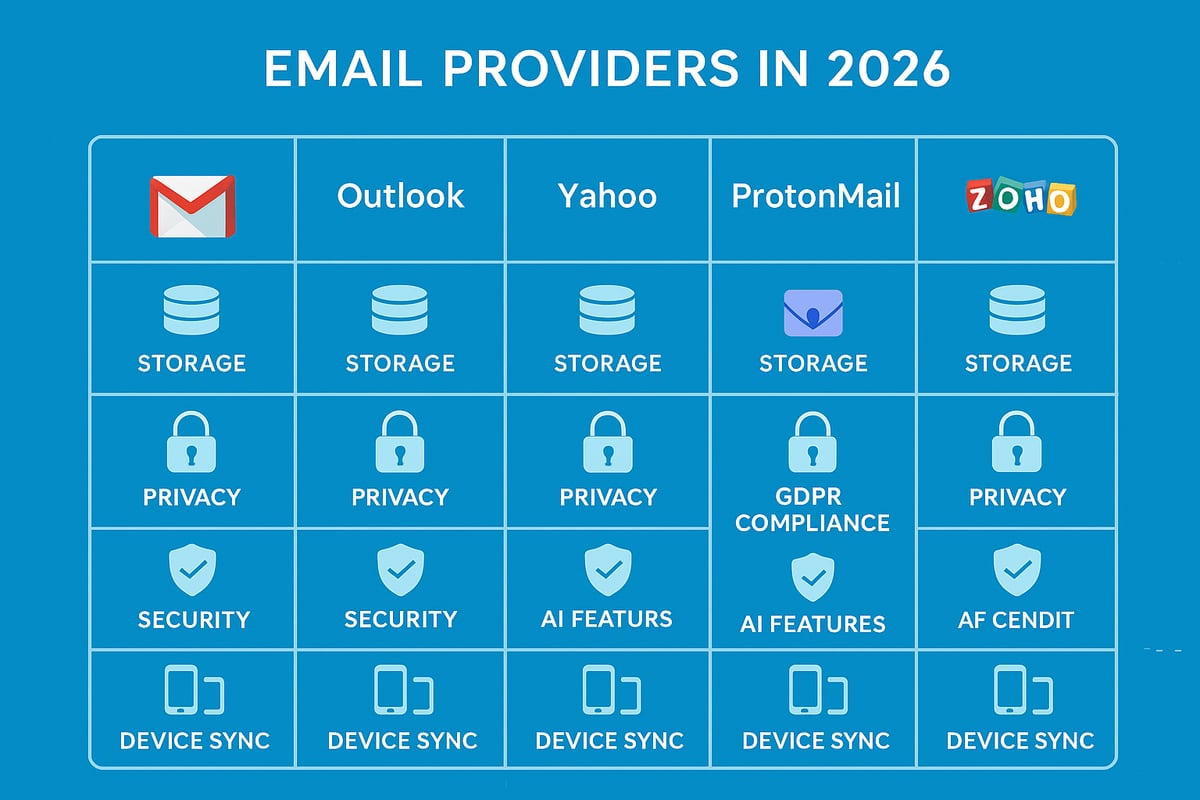
When setting up an email new email account, start by comparing the leading providers: Gmail, Outlook, Yahoo, ProtonMail, and Zoho. Each offers unique advantages. Gmail remains the most popular, with over 1.8 billion users (2024). Its Smart Compose feature and robust spam filtering appeal to both personal and business users. Outlook stands out for its Focused Inbox and seamless integration with Microsoft apps.
Below is a comparison table of the top providers in 2026:
| Provider | Storage | Spam Filtering | AI Features | Privacy Controls | Custom Domains |
|---|---|---|---|---|---|
| Gmail | 15GB | Advanced | Smart Compose | Standard | Yes (paid) |
| Outlook | 15GB | Advanced | Focused Inbox | Standard | Yes (paid) |
| Yahoo | 1TB | Good | Basic | Standard | No |
| ProtonMail | 1-20GB | Good | None | End-to-end encryption | Yes (paid) |
| Zoho | 5GB+ | Good | Workflow Automation | Enhanced | Yes (free/paid) |
AI-powered inboxes and enhanced privacy controls are now standard in 2026. For example, ProtonMail’s encryption is unrivalled for privacy, while Zoho offers a bundled office suite and calendar, ideal for professionals. Consider if you need a free or paid account. Free accounts are great for personal use, but business users may prefer paid plans for added storage, custom domains, and advanced support.
Before finalising your choice, assess migration options, scalability, and integrations with other digital tools. For a deeper dive into free account options, visit this Get a free email account guide to streamline your decision.
Privacy, Security, and Data Policies
Privacy is crucial when creating your email new email account. In the UK, top providers must comply with GDPR and other data protection regulations. Gmail, Outlook, and Zoho follow strict protocols, but ProtonMail offers end-to-end encryption, keeping your messages private even from the provider. This is especially valuable for individuals and businesses handling sensitive information.
A Which? survey in 2024 found that 85% of UK users prefer providers with transparent privacy policies. Businesses must also examine how providers notify users about breaches or suspicious activity. ProtonMail, for example, immediately alerts users to any unusual access attempts.
Understanding how your data is stored and processed gives you more control over your digital footprint. When evaluating providers, check their privacy statements and look for clear options to manage your data preferences. Choosing a provider with strong privacy standards helps protect your information long-term.
Additional Features to Consider
Beyond core functionality, consider features that enhance the experience of your email new email account. Reliable mobile apps and cross-device sync are essential for staying connected on the go. Integration with calendars, contacts, and cloud storage can streamline productivity, especially for professionals.
Support for custom domains is a significant advantage for those seeking a professional image. Zoho, for instance, offers easy domain setup and a bundled office suite. Quality customer support and active community forums are invaluable when troubleshooting issues.
Accessibility features are increasingly important, with providers offering voice navigation, screen reader compatibility, and high-contrast modes. Prioritising these features ensures your email new email account remains flexible, efficient, and user-friendly for all users.
Step-by-Step: Creating Your New Email Account
Starting your email new email account setup journey in 2026 is straightforward, but attention to detail can make a world of difference. A well-prepared registration process, robust password choices, and a clear understanding of terms ensure your account remains secure and accessible. Let’s walk through each critical step for a seamless experience.
Registration Process Explained
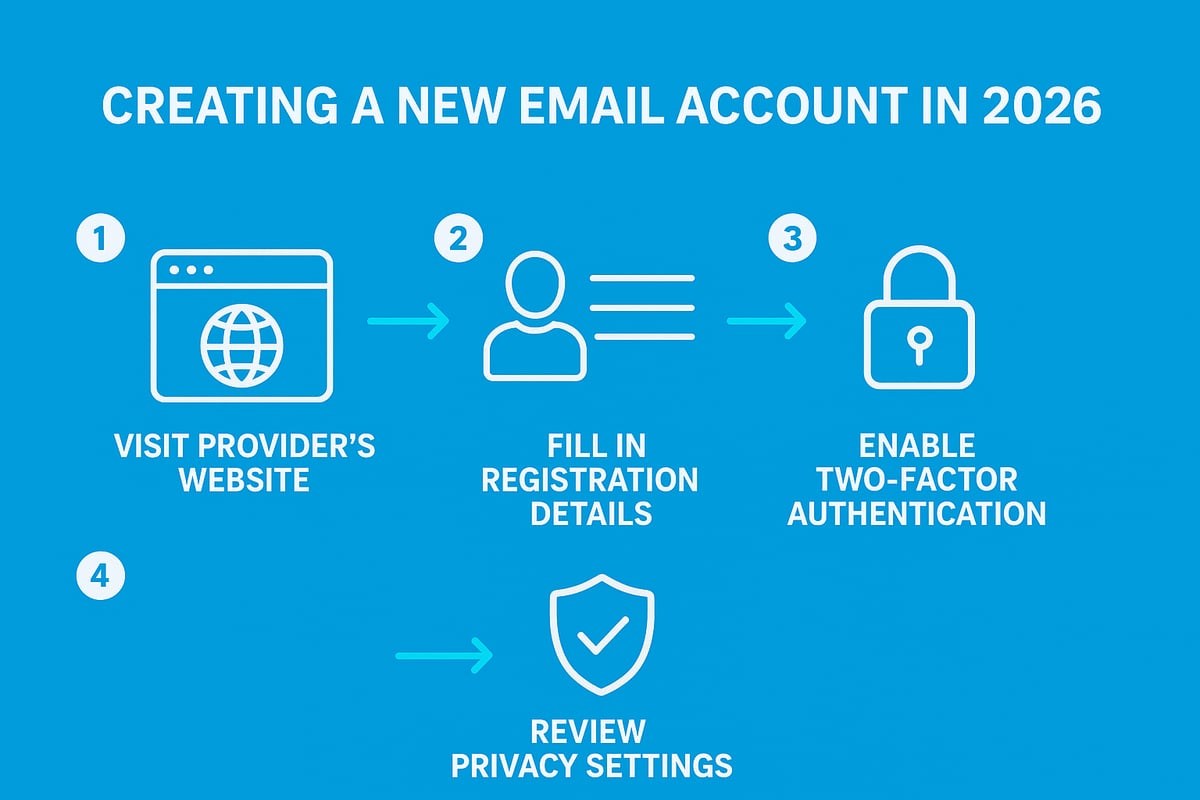
Setting up an email new email account begins with choosing your provider and accessing their official website. Look for a “Create Account” or “Sign Up” button, usually displayed on the homepage. The process is largely similar across major platforms, but slight variations exist.
Here’s a typical registration flow for your email new email account:
| Step | Action | Details |
|---|---|---|
| 1 | Visit provider’s site | e.g., Gmail, Outlook, Zoho |
| 2 | Click “Create Account” | Start the signup process |
| 3 | Enter personal details | Name, date of birth, country |
| 4 | Choose email address | Unique and memorable |
| 5 | Add recovery information | Phone and backup email |
| 6 | Complete CAPTCHA | Prove you’re not a robot |
| 7 | Review and accept terms | Privacy and consent |
When selecting your email address, consider these tips:
- Use your real name for professionalism.
- Avoid random numbers or special characters.
- For business, align the address with your brand.
A memorable address is important. According to One.com, 60% of users abandon sign-up if their preferred username is unavailable. If your first choice is taken, try adding a middle initial or a simple variation.
Always provide accurate recovery information. This step is vital for future access, especially if you forget your password or lose access to your device. For users under 16, most providers require parental consent or restrict certain features, so check the provider’s policy before proceeding.
For a comprehensive, provider-specific walkthrough, see the Creating a free business email guide, which covers both personal and business account setups.
Setting a Strong and Secure Password
A robust password is the cornerstone of your email new email account security. In 2026, most providers require at least 12-16 characters, including uppercase and lowercase letters, numbers, and symbols. Avoid dictionary words or common patterns.
Here’s a comparison of weak and strong password examples:
| Weak Password | Strong Passphrase |
|---|---|
| john123 | Coffee!Sunrise!River!42 |
| password2026 | M0narch$Blue_Planet! |
Consider using a password manager to generate and store complex passwords. These tools also help prevent the common mistake of reusing passwords across multiple sites.
Enable two-step verification (2FA) during setup for your email new email account. This adds an extra layer of protection by requiring a code from your phone or an authenticator app. According to Microsoft, accounts with 2FA are 99.9% less likely to be compromised.
Common mistakes to avoid:
- Reusing old passwords.
- Choosing weak recovery questions.
- Sharing passwords with others.
For example, instead of a simple word, create a passphrase using unrelated words and numbers. Here’s a sample:
Tiger!Window#17Guitar
This approach makes your email new email account much harder to breach, while remaining easier for you to remember.
Accepting Terms and Privacy Policies
When you reach the final steps of setting up your email new email account, you’ll be prompted to review the provider’s terms of service and privacy policies. Take a moment to read these documents, as they outline how your data will be used and stored.
Most registration forms include checkboxes for marketing consent. You can usually opt out of promotional emails during setup. This prevents unwanted messages and keeps your inbox focused.
Be mindful of what you’re agreeing to:
- Data collection for analytics and advertising.
- Sharing information with third-party partners.
- Automatic updates to policy terms.
After setup, you can revisit and adjust your consent settings in your account dashboard. Look for sections labelled “Privacy,” “Security,” or “Communication Preferences.”
For professionals and privacy-conscious users, understanding these settings is essential. Your choices can impact not only your email new email account experience, but also how your information is shared across the provider’s ecosystem.
Essential Security Settings for Your New Email Account
Setting up your email new email account is just the first step. Securing it with the right settings ensures your sensitive information and conversations remain private. In this section, we will walk you through vital security features every user should enable from day one.
Activating Two-Step Verification and Recovery Options
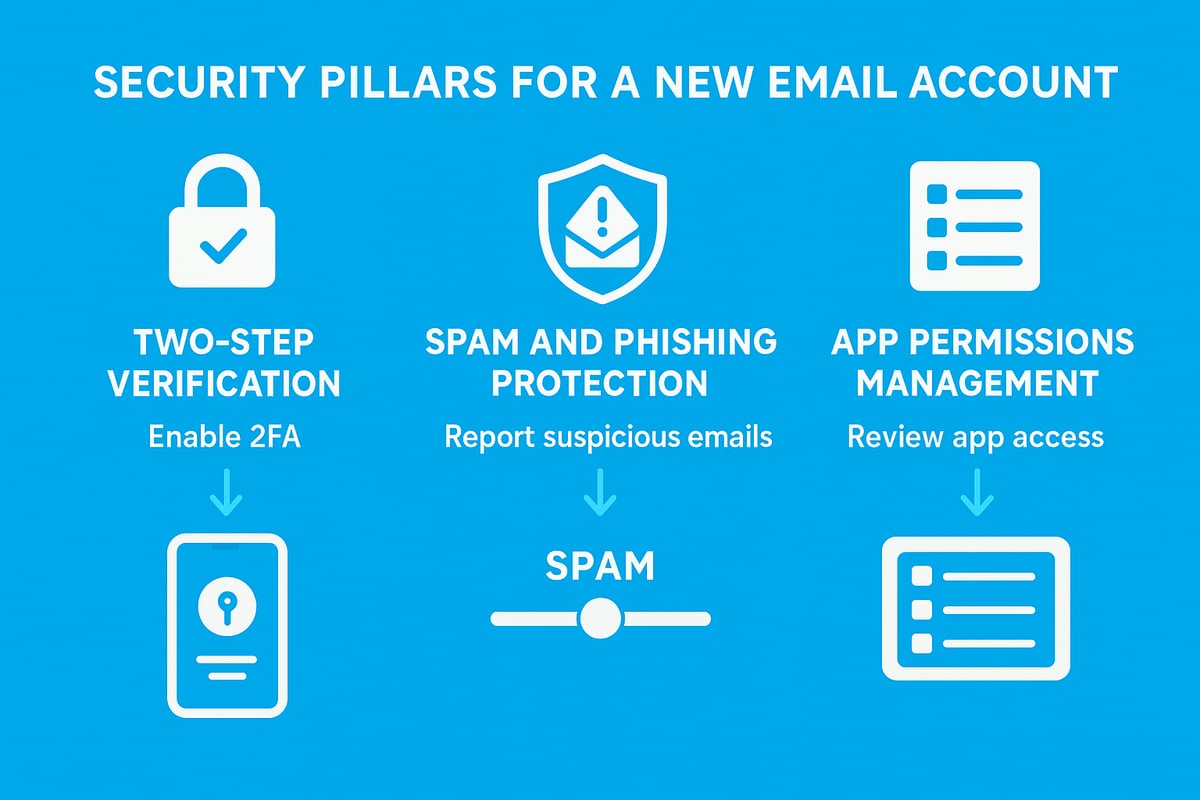
Protecting your email new email account starts with two-step verification (2FA). This extra layer requires both your password and a second code sent to your phone or generated by an authenticator app. Here’s how to get started:
- Log in to your account and find the security settings.
- Choose "Enable Two-Step Verification."
- Select your preferred method: SMS, authenticator app, or hardware key.
- Add backup options, such as a recovery email and phone number.
Using apps like Google Authenticator or Microsoft Authenticator makes 2FA convenient and secure. According to Verizon's 2024 DBIR, over 70% of breaches involve compromised passwords, but 2FA significantly reduces this risk. Do not forget to update your recovery details if you change devices or numbers.
Balancing convenience and security is key. If you are managing a business or handling sensitive data, you can find more in-depth advice in this guide on secure email for small business. Taking these steps ensures your email new email account stays protected, even if your primary login details are lost or exposed.
Customising Spam and Phishing Protection
Spam and phishing are persistent threats for any email new email account. Most providers enable spam filters by default, but you can further customise their sensitivity in your settings. Look for options like "Spam Filter Level" or "Phishing Protection" to tailor the experience.
Common signs of phishing emails include:
| Indicator | Example |
|---|---|
| Suspicious sender | [email protected] |
| Urgent language | "Immediate action required!" |
| Unexpected links | www.fake-login.example.com |
If you spot a suspicious email, use the "Report Phishing" feature in Gmail or Outlook. Proactive reporting not only protects you but also helps improve the system for everyone. The UK Cyber Security Centre noted a 45% rise in reported phishing emails in 2025, highlighting the need for vigilance.
Recognising and reporting threats keeps your email new email account safer. Regularly review what lands in your spam folder and adjust settings to reduce false positives.
Managing Account Permissions and Connected Apps
Over time, your email new email account may become linked to various third-party apps and services. Each connection could introduce new risks, especially if you forget about unused permissions.
Take these steps regularly:
- Visit your account's "App Permissions" or "Connected Apps" section.
- Review each app and service listed.
- Revoke access for any app you no longer use or trust.
Too many permissions can expose your data without you realising. Auditing these connections ensures only essential services have access. If you change your primary device or stop using a service, update your permissions accordingly.
By actively managing permissions, you reduce the risk of unauthorised access and maintain control over your email new email account. Make auditing a routine part of your digital security checklist.
Setting Up Your Email Account on Devices
Setting up your email new email account across devices is essential for staying connected and organised in 2026. Whether you prefer desktop, webmail, or mobile apps, the right configuration ensures seamless access wherever you are. This section guides you through each step, helping you avoid common pitfalls and optimise your experience.
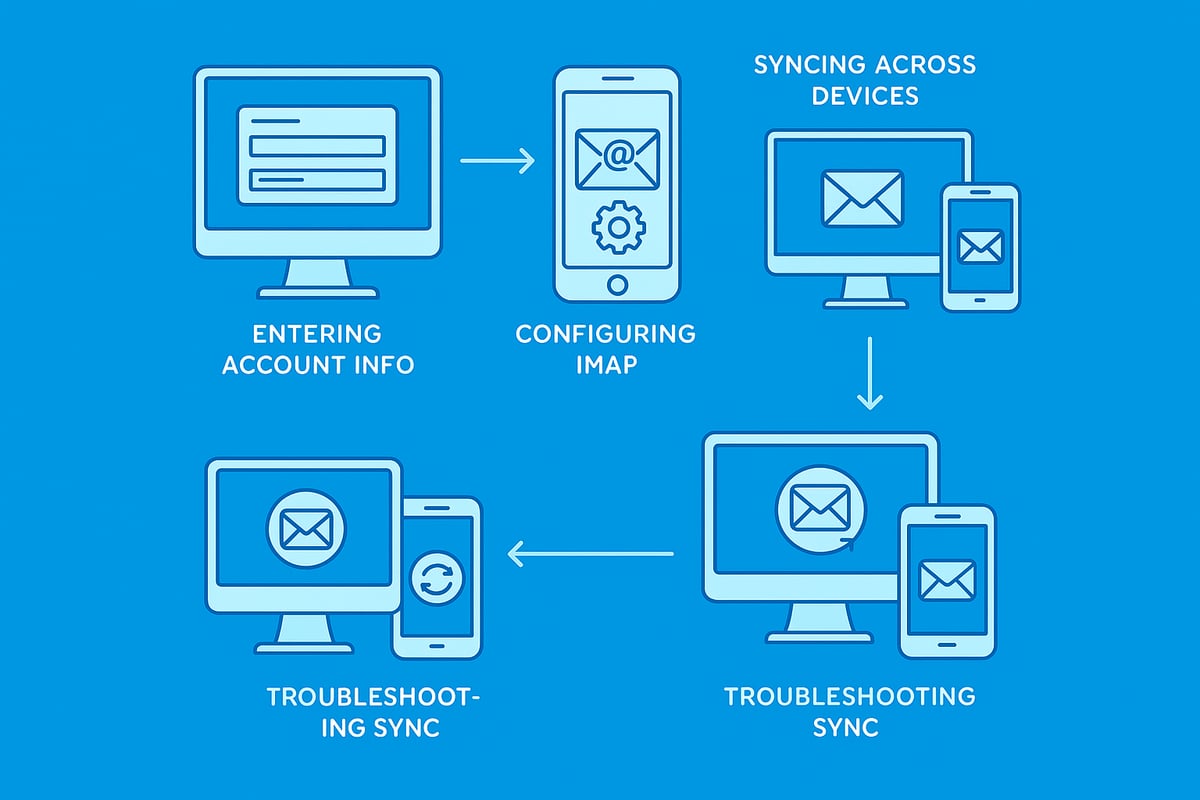
Configuring on Desktop and Webmail
Accessing your email new email account on desktop or via webmail is often the first step after registration. Start by visiting your chosen provider's website, such as Gmail or Outlook. Click 'Sign In,' enter your credentials, and familiarise yourself with the interface.
The main dashboard typically displays inbox, sent items, and folders on the left, with message previews in the centre. Providers like Gmail and Outlook offer unique layouts and productivity tools. For example, Gmail’s minimal design contrasts with Outlook’s Focused Inbox and integrated calendar. Here is a quick comparison:
| Feature | Gmail | Outlook.com |
|---|---|---|
| Inbox Layout | Tabbed | Focused/Other |
| Theme Options | Extensive | Moderate |
| Calendar Sync | Yes | Yes |
| Integrated Apps | Google Suite | Microsoft 365 |
To personalise your email new email account, set up a signature and enable auto-replies. In settings, look for 'Signature' or 'Out of Office' options. This ensures professional communication and timely responses.
For a detailed walkthrough on configuring a new account across devices, see Adding an email account to devices.
Webmail is ideal for remote access since you can log in from any browser without special software. Always log out after use on shared computers to protect your email new email account.
Adding Your Account to Mobile Devices (iOS, Android)
Most users access their email new email account daily on mobile phones. To add your account on iOS, open the Mail app, tap 'Add Account,' and select your provider. Enter your email address and password, then follow prompts for verification. Android users can use the Gmail app or other email apps. Open the app, go to 'Settings,' tap 'Add Account,' and enter your details.
Some providers now offer QR code setup, making it even easier to add your email new email account. Simply scan the code displayed on your desktop with your mobile device, and configuration completes automatically.
When setting up, you can choose between push notifications for instant alerts or manual sync for greater privacy and battery life. Push is convenient for urgent messages, while manual sync can reduce distractions. Here are the steps:
- Open your chosen email app.
- Select 'Add Account.'
- Enter your email new email account details.
- Choose sync preferences.
- Complete verification.
Security is vital. Keep your device and apps updated to protect your email new email account from emerging threats. If you switch devices, remove your account from the old device to prevent unauthorised access.
Syncing Across Multiple Devices
To ensure your email new email account stays consistent everywhere, enable IMAP during setup. IMAP allows all your devices to access the same mailbox, so changes like reading or deleting emails sync instantly. POP3, in contrast, downloads messages to one device, which can cause confusion if you use several devices.
Here’s a typical IMAP configuration:
Incoming server: imap.provider.com
Port: 993 (SSL)
Outgoing server: smtp.provider.com
Port: 465 (SSL)
After enabling IMAP, any changes you make—such as moving a message to a folder—will reflect across each device. This keeps your email new email account organised and up to date.
Using multiple devices has its benefits, such as flexibility and better time management, but can lead to sync issues. Common causes include incorrect IMAP settings or outdated app versions. Troubleshoot by checking your internet connection, verifying settings, and updating your apps.
If emails are not syncing, try removing and re-adding your email new email account. Most providers offer help guides for specific platforms.
Staying proactive with your setup ensures your email new email account works reliably, wherever you need it.
Troubleshooting Common Email Account Issues
Encountering trouble with your email new email account can be frustrating, especially when you need access urgently. Fortunately, most issues can be resolved with a few targeted steps. Understanding common problems, such as login difficulties, email delivery glitches, or unexpected security alerts, will help you maintain reliable access and protect your information.
Login Problems and Account Recovery
If you find yourself locked out of your email new email account, start by using the provider’s password recovery tool. Most services offer a “Forgot Password” option, guiding you through steps to regain access. You will typically need to confirm your identity using a recovery email, phone number, or security questions.
Common login issues include:
- Forgotten passwords
- Incorrect username or email address
- Account locked after multiple failed attempts
To prevent future lockouts, always keep your recovery information up to date. According to One.com, 30% of support queries are related to login problems, highlighting the importance of accurate backup details. For accounts set up for children, parental controls may affect access and recovery steps.
If the recovery process fails, contact the provider’s support team with proof of identity. Regularly reviewing your recovery options ensures seamless access to your email new email account.
Email Delivery and Spam Issues
Not receiving expected emails or finding important messages in your spam folder is a common concern with a new email new email account. First, check your spam or junk folders and whitelist contacts you want to hear from. Review your provider's spam filter settings, which may be too aggressive, causing legitimate emails to be misclassified.
Typical delivery problems include:
- Emails stuck in the outbox
- Delays in receiving messages
- Messages landing in spam or junk folders
According to Which?, 18% of legitimate emails are mistakenly filtered as spam. Adjust your spam filter’s sensitivity and add key contacts to your safe sender list to reduce false positives. If emails are not sending or receiving, verify your server settings and internet connection.
Should these steps not resolve the issue, consult your provider’s help documentation or community forums for troubleshooting tips specific to your email new email account setup.
Security Alerts and Suspicious Activity
Security notifications are vital for protecting your email new email account. If you receive an alert about a login from a new location or device, act promptly. Change your password immediately and review recent account activity for any unauthorised access.
Recommended actions include:
- Verifying the alert’s authenticity
- Changing your password and enabling two-step verification
- Reviewing connected devices and revoking access if needed
If you notice suspicious emails or phishing attempts, report them to your provider. Proactive reporting helps improve spam filters for everyone. For more guidance, consult Email Security Best Practices for 2026 to ensure your account remains protected.
In cases of repeated alerts or if you suspect your email new email account has been compromised, contact your provider’s security team for immediate assistance.
Advanced Tips and Customisation for Power Users
Unlocking the full potential of your email new email account means exploring advanced features that streamline your digital workflow. Power users can leverage smart tools to keep their inboxes clean, automate routines, and maintain a professional image. As email usage continues to evolve, staying ahead with customisation can lead to significant productivity gains. According to the Email Industry Data Report 2025–2026, the demand for advanced email capabilities is at an all-time high, reflecting the growing role of email in daily business and personal communication.
Setting Up Aliases, Filters, and Folders
Start by creating aliases for your email new email account. Aliases help you organise different types of communication, such as shopping, newsletters, or work. You can set up filters to automatically sort incoming messages into dedicated folders, reducing inbox clutter and boosting productivity.
- Use aliases like [email protected] for online purchases.
- Set up filters to move newsletters into a 'Subscriptions' folder.
- Create rules to flag important client emails for quick follow-up.
According to Zoho, users who implement filters experience 40% less inbox clutter. With these tools, your email new email account becomes manageable, efficient, and tailored to your preferences.
Integrating with Calendars, Contacts, and Productivity Tools
Modern email platforms allow seamless integration with calendars, contacts, and productivity suites. When you connect your email new email account to tools like Google Calendar or Microsoft Teams, scheduling and collaboration become effortless.
Sync your contacts to ensure you never lose touch with important connections. Importing or exporting contacts between services is straightforward, letting you maintain an up-to-date address book as your network grows.
Unifying your communication and scheduling tools within your email new email account saves time and reduces the risk of missed meetings or messages.
Custom Domain Email Addresses for Professionals
For those looking to enhance their professional image, setting up a custom domain for your email new email account is invaluable. Using an address like [email protected] reinforces your brand and builds trust with clients.
Steps to set up a custom domain:
- Register a domain with a reputable provider.
- Choose an email service that supports custom domains, such as Zoho or G Suite.
- Configure DNS settings to link your domain to your email account.
A recent UK Small Business Survey found that 67% of small businesses see improved credibility with custom domain emails. This upgrade positions your email new email account as a key asset in your business toolkit.
Email Forwarding and Auto-Reply Rules
Managing multiple addresses is simple with email forwarding. Consolidate messages from several accounts into your primary inbox, ensuring nothing slips through the cracks.
Set up auto-reply rules for scenarios like holidays or out-of-office periods. For example, configure a friendly message to inform senders of your return date or provide alternate contact details.
- Use forwarding to centralise communication.
- Customise auto-replies for specific contacts or situations.
- Review rules regularly to keep them current.
By automating responses, your email new email account remains responsive and reliable, even when you are away.
Backup and Migration Options
Protecting your data is essential for any email new email account. Regularly export your emails and contacts to prevent accidental loss. Most providers offer built-in tools to help you back up or migrate your information to a new platform.
- Export data as .pst or .mbox files for local storage.
- Use migration assistants when switching providers.
- Schedule periodic backups for added peace of mind.
With 22% of users experiencing data loss at least once, taking proactive steps ensures your important communications stay safe, no matter what happens.