7 Best Tools for Your Holiday Email Signature Christmas 2025
December 7, 2025

The festive period offers a unique opportunity to connect with clients, customers, and colleagues on a more personal level. While many businesses focus on large-scale marketing campaigns, a simple, well-crafted holiday email signature for Christmas can add a powerful and personal touch to every single message you send. It's a low-effort, high-impact method to share seasonal greetings, promote special offers, or clearly communicate your holiday opening hours without cluttering your email body.
This guide is designed to help you find the perfect solution for your needs. We've curated a list of seven excellent tools and resources, from free DIY templates to sophisticated management platforms suitable for your entire organisation. Whether you're a freelancer wanting to add a touch of festive cheer or a marketing manager planning a company-wide update, you'll find an option that fits. To further enhance your festive communications, consider consulting a guide to creating stunning Christmas professional pictures that can be integrated into your holiday themes.
We will explore each platform, providing a clear overview, practical examples, direct links, and step-by-step implementation guides for popular email clients. Our goal is to help you create a professional holiday email signature for Christmas that looks great, works perfectly across all devices, and helps you end the year on a high note. Let's dive into the best options available.
1. Mail-Signatures.com (by CodeTwo)
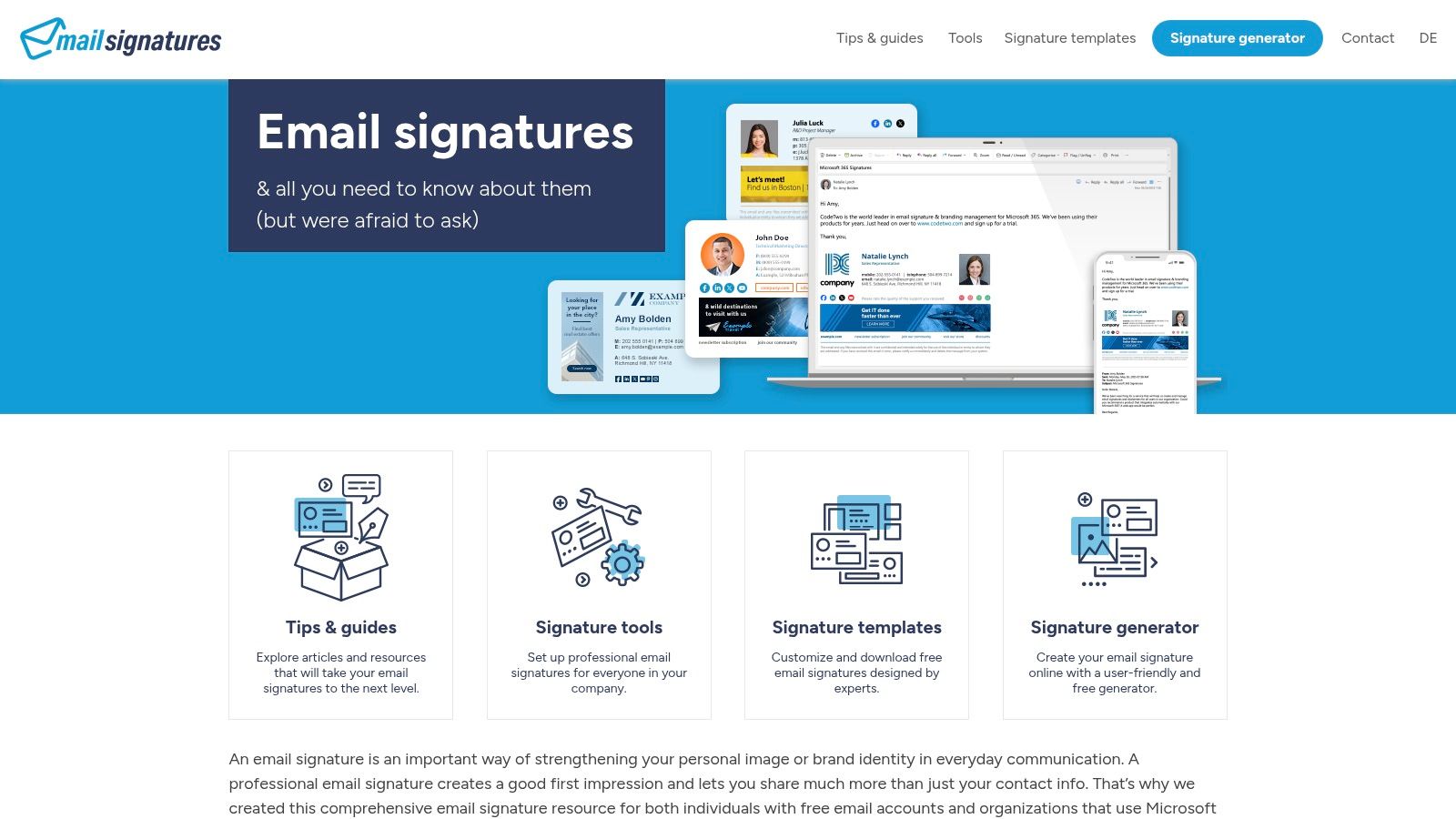
For those seeking a quick, no-fuss solution, Mail-Signatures.com is an exceptional starting point. Run by email software experts CodeTwo, this website offers a comprehensive library of free, professionally designed holiday email signature Christmas templates. It's an ideal choice for individuals, freelancers, and small businesses who need a festive touch without the complexity or cost of a dedicated management platform.
The platform's strength lies in its simplicity and accessibility. You don’t need to sign up or provide any personal details. Simply browse their curated collection of festive designs, which range from subtle seasonal greetings to more vibrant, eye-catching banners. Many of the newer templates are even editable in Canva, allowing for easy customisation of colours, text, and logos to align with your brand identity.
Key Offerings and Features
One of the standout features is the collection of animated GIF banners. These add a dynamic and engaging element to your emails, instantly capturing the recipient's attention. The site also provides themed banner packs, including a ready-to-download bundle for 2025, which is perfect for planning ahead.
To ensure your signature looks great everywhere, the platform includes:
- Step-by-step guides: Detailed instructions are provided for implementing your chosen signature in popular email clients like Microsoft Outlook and Gmail.
- Dark-mode previews: You can see how each template will render in dark mode, helping you avoid common visibility issues.
- Mobile-friendly designs: The templates are built to be responsive, ensuring they display correctly on smartphones and tablets.
Practical Implementation
Implementing a signature from Mail-Signatures.com is straightforward. Here’s a step-by-step guide:
- Select a Template: Go to the website and browse the "Christmas email signatures" category. Find a design that fits your brand. For example, choose a subtle design with snowflakes or a more festive one with an animated GIF.
- Customise: Click "Edit signature." This opens their free editor where you'll input your details like name, title, company, and phone number. You can also upload your logo and add social media links.
- Generate & Copy: Once you've filled in your details, click "Apply your signature." A new window will appear. Click "Copy signature to clipboard." This copies the raw HTML code.
- Install in Your Email Client:
- In Gmail: Go to Settings > See all settings > General tab. Scroll down to the "Signature" section. Create a new signature, give it a name (e.g., "Christmas 2025"), and paste the copied HTML into the text box.
- In Outlook (Desktop): Go to File > Options > Mail > Signatures. Create a "New" signature, name it, and paste the HTML into the editor box.
- Follow the specific guides on their website for other email clients.
Pros and Cons
| Pros | Cons |
|---|---|
| Completely Free: No cost or sign-up is required to access templates. | DIY Installation: Requires manual setup for each user. |
| High-Quality Designs: Professional and business-appropriate options. | No Central Management: Not suitable for large team rollouts. |
| Excellent Guidance: Clear installation instructions and technical tips. | GIF Size: Animated banners need to be optimised to avoid slow loading. |
While this DIY approach is perfect for smaller operations, businesses needing to manage signatures for multiple employees may find it cumbersome. For centralised control and automated scheduling, a dedicated platform is more suitable. Learn more about the advanced features of centrally managed email signature solutions.
Website: https://www.mail-signatures.com/
2. Exclaimer
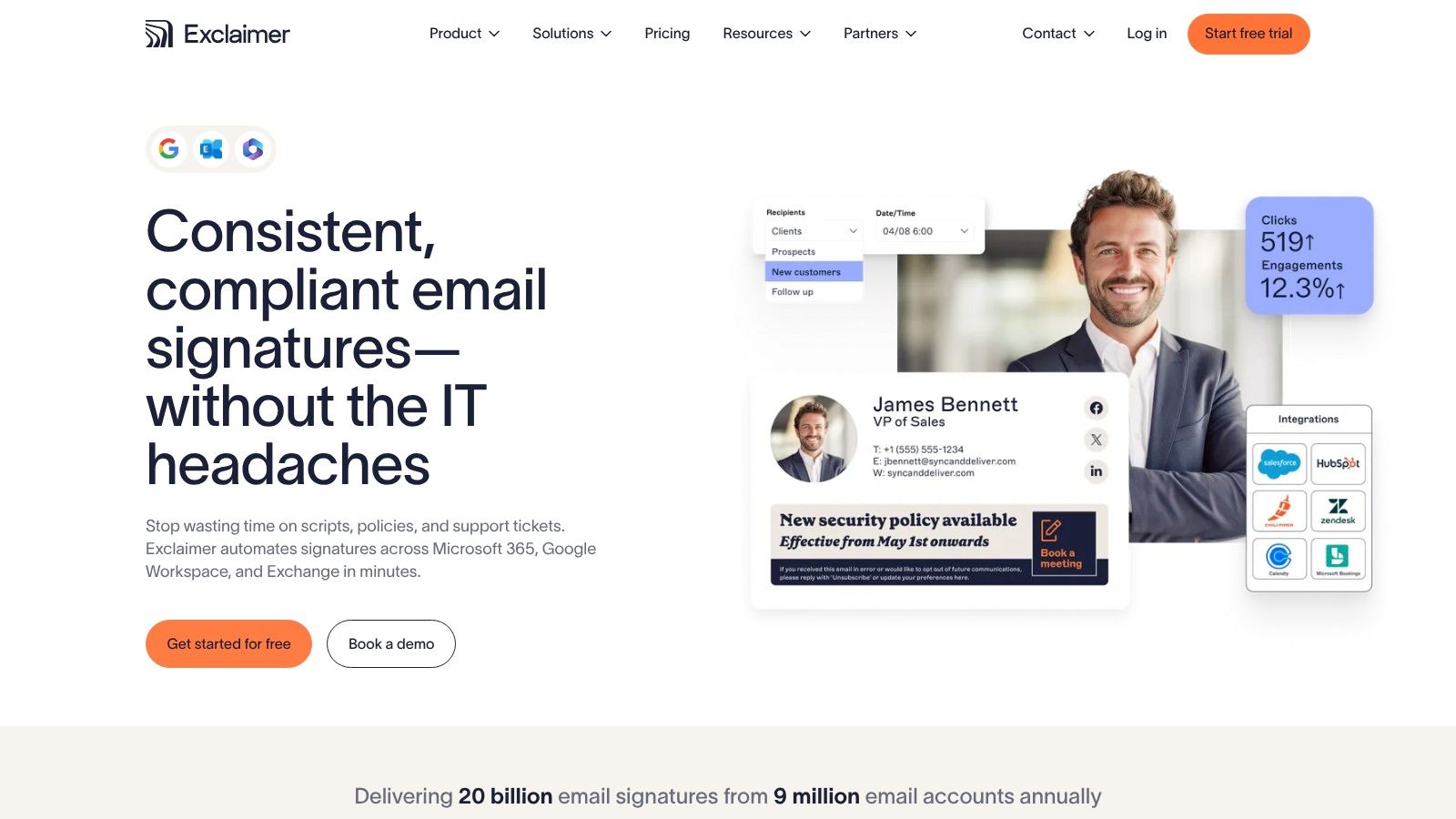
For organisations seeking enterprise-grade control and automation, Exclaimer is a leading platform for centrally managing email signatures. Headquartered in the UK, it provides a powerful solution for businesses using Microsoft 365 or Google Workspace to deploy consistent, professional branding across all emails sent from any device. When it comes to a holiday email signature Christmas campaign, Exclaimer excels at automated, scheduled rollouts, eliminating manual updates for employees.
The platform's core strength is its server-side integration, which ensures every email leaving the organisation receives the correct, policy-compliant signature. This is ideal for medium to large businesses that require governance and brand consistency. Instead of individual employees adding banners, marketing or IT teams can design, schedule, and deploy festive campaigns for specific groups or the entire company, ensuring a unified and timely holiday message.
Key Offerings and Features
Exclaimer's standout feature is its powerful scheduling capability. You can create a Christmas banner or a full festive signature and set it to automatically activate on a specific date (e.g., 1st December) and deactivate on another (e.g., 1st January). This "set and forget" approach ensures your holiday branding is timely and removes the risk of outdated banners lingering into the new year.
The platform provides a complete toolset for corporate signature management:
- Centralised Signature Designer: An intuitive drag-and-drop editor allows you to create professional signatures without needing HTML skills.
- Date/Time Rules: Automate the start and end of your Christmas campaigns with precise scheduling.
- Campaign Banners: Easily add a promotional holiday banner below the main signature, which can be tracked for click-throughs.
- Audience Targeting: Apply different festive signatures to various departments, such as a sales-focused banner for the sales team and a general greeting for others.
Practical Implementation
Deploying a holiday campaign with Exclaimer is a streamlined process for administrators. Here is a step-by-step guide:
- Design the Signature: Log in to the Exclaimer portal. Use the drag-and-drop editor to create a new signature template. For example, add a "Promotional Banner" element and upload a PNG or GIF with your Christmas message, like "Happy Holidays & A Prosperous New Year!"
- Define the Rules: Go to the "Manage" tab. Select your new festive signature and click "Select Senders." Here you can apply it to specific groups pulled from your company directory (e.g., "Sales Department" or "All Employees").
- Set the Schedule: Within the signature rules, find the "Date and Time" settings. Set the "Enable this signature from" date to December 1st, 2025, and the "until" date to January 2nd, 2026. This ensures the signature activates and deactivates automatically.
- Save and Activate: After configuring the senders and schedule, save the signature rule. Exclaimer’s servers will now automatically append this signature to all relevant emails during the scheduled period, with no employee action needed.
Pros and Cons
| Pros | Cons |
|---|---|
| Robust Central Management: Enforces brand consistency across all users and devices. | Pricing Requires a Quote: No public, fixed pricing is available. |
| Automated Scheduling: Purpose-built for seasonal campaigns like Christmas. | Overkill for Individuals: Not cost-effective for freelancers or very small teams. |
| Server-Side Application: Signatures are applied after the user clicks send. | Learning Curve: May require some initial setup and familiarisation. |
Exclaimer is the go-to solution for businesses needing foolproof, automated management of their holiday email signatures. While its pricing and feature set are geared towards organisations rather than individuals, its ability to execute flawless, company-wide campaigns is unparalleled.
Website: https://www.exclaimer.com/
3. WiseStamp
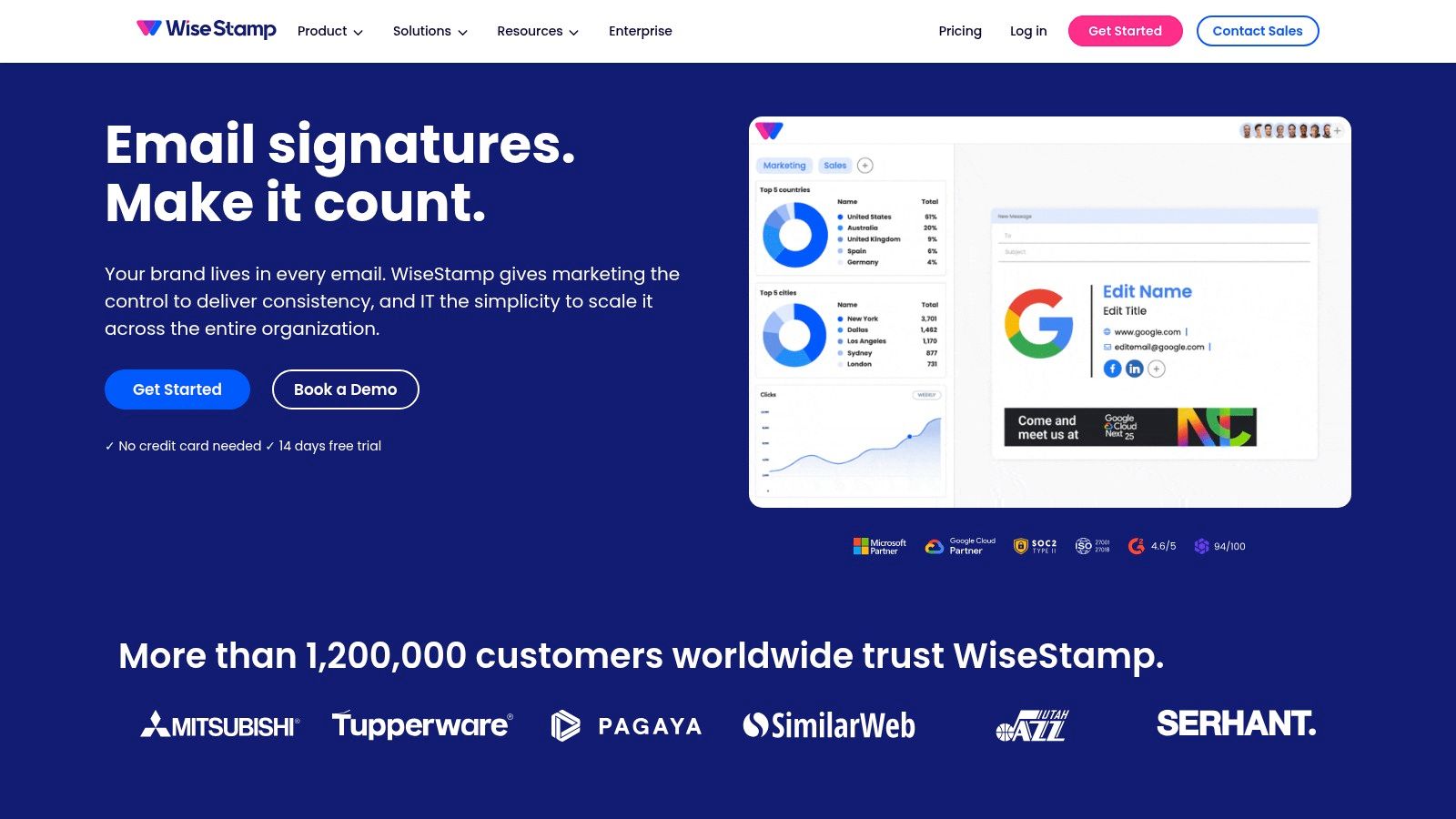
WiseStamp is an excellent all-in-one solution for individuals and businesses aiming to create a dynamic holiday email signature Christmas banner quickly. It balances user-friendly design tools with powerful management features, making it suitable for everyone from freelancers to small and medium-sized businesses. The platform is especially useful for those who want a polished, professional look without needing graphic design skills.
The core appeal of WiseStamp lies in its streamlined signature generator and extensive gallery of pre-made holiday banners. Users can select from various Christmas and New Year themes, customise the text, and integrate them into their signatures in minutes. This approach provides a quick-win for seasonal marketing efforts, allowing for easy updates and campaign management directly within the platform.
Key Offerings and Features
WiseStamp's offerings are tiered to serve different needs. Solo users and small teams benefit from the intuitive editor, while larger organisations can leverage advanced management capabilities. The platform effectively bridges the gap between simple free tools and complex enterprise solutions.
Key features to elevate your festive emails include:
- Dedicated Holiday Banners: A large, curated library of professional banners for Christmas, New Year, and other seasonal events.
- Signature Generator: A straightforward, step-by-step process to build and customise your signature with logos, social links, and contact details.
- Team Management: Higher-tier plans offer directory synchronisation (Google Workspace & Microsoft 365), server-side deployment, and campaign analytics to track engagement.
Practical Implementation
Getting a holiday signature live with WiseStamp is designed to be simple. Follow these steps:
- Sign Up & Choose a Template: Create an account on the WiseStamp website. You'll be immediately taken to the signature editor. Start by selecting a professional template layout.
- Add Your Details: On the left-hand panel, fill in your information under the "Details" and "Socials" tabs. Upload your company logo or a professional headshot.
- Select a Festive Banner: Go to the "Apps" tab and scroll to find the "Banners" feature. Click "Add." You can now browse their gallery of pre-made holiday banners. For example, choose one that says "Seasons Greetings" and link it to your company’s holiday blog post.
- Install the Signature: Once you're happy with the design, click "OK, I'm done." WiseStamp will provide instructions for your specific email client. For Gmail, it often involves installing their browser extension which automatically inserts the signature. For Outlook, you will typically copy the generated signature and paste it into the signature settings.
Pros and Cons
| Pros | Cons |
|---|---|
| Large banner library: Quick and easy setup for non-designers. | Paid Tiers Required: Advanced features like analytics are premium. |
| Scalable for teams: Offers centralised management features. | WiseStamp Branding: Free and lower-tier plans include their logo. |
| Clear pricing: Transparent plans for solo users and teams. | Extension-Based: Primary installation for some clients relies on a browser extension. |
While the free version is a great entry point, businesses wanting to remove branding and unlock campaign features will need to invest in a paid plan. For organisations evaluating scalable solutions with robust analytics, you can explore the features of different plans here.
Website: https://www.wisestamp.com/
4. CodeTwo Email Signatures 365
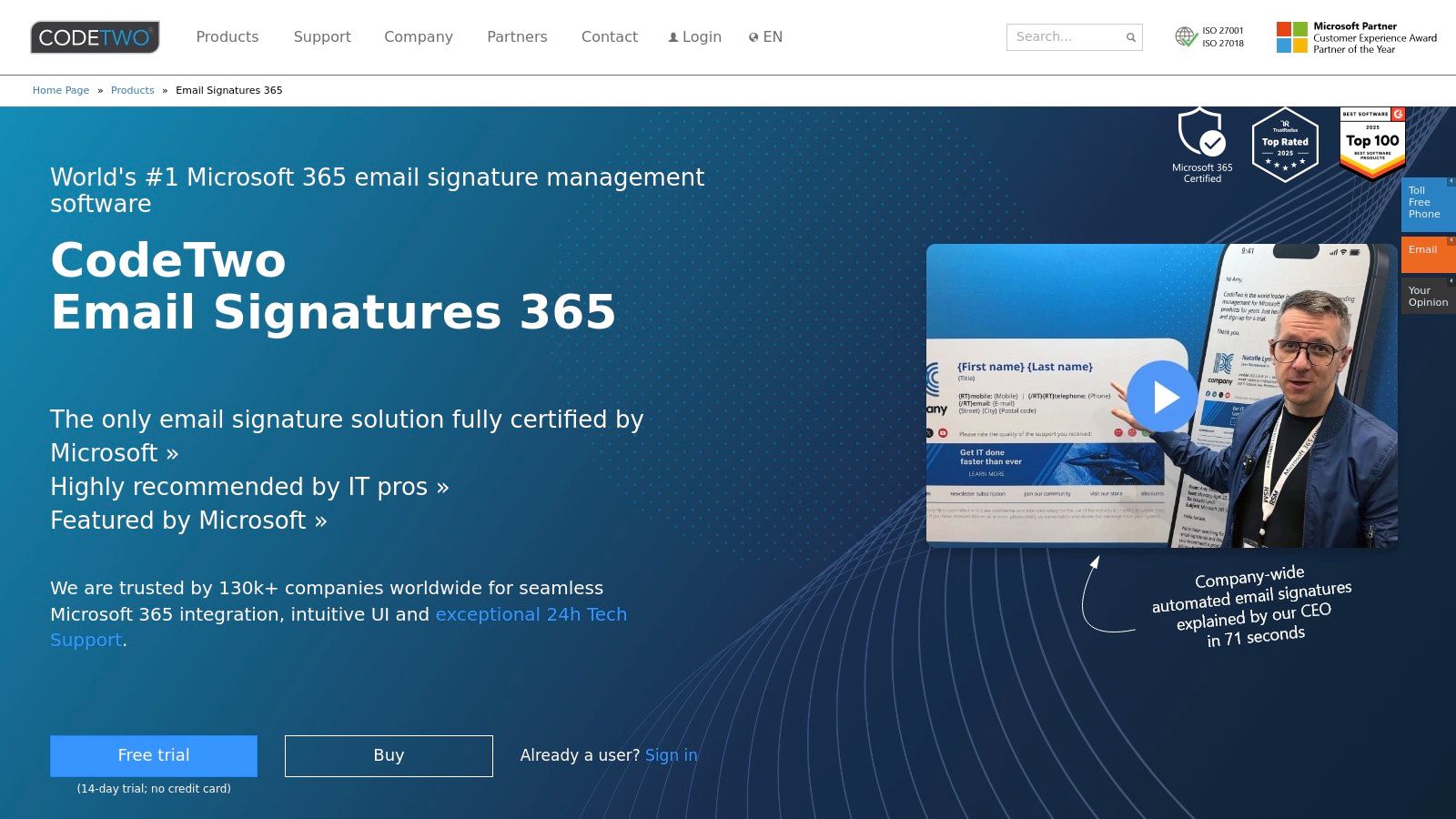
For organisations using Microsoft 365, CodeTwo Email Signatures 365 is a market-leading solution for centrally managing email branding. It moves beyond individual templates, offering a powerful cloud-based platform to deploy a consistent holiday email signature Christmas banner across the entire company. This is the ideal choice for businesses needing granular control, automated scheduling, and rule-based targeting for their festive campaigns.
The platform’s core strength is its deep integration with Microsoft 365. Signatures are added at the server level (cloud-side), ensuring they are applied to every email sent from any device, including mobiles and Macs, without any user action. This guarantees brand consistency and removes the hassle of manual updates for employees, making it perfect for scaling holiday marketing efforts efficiently.
Key Offerings and Features
CodeTwo’s feature set is designed for professional marketing and IT management. A key feature is the scheduler, which allows you to set up your Christmas banners in advance and have them automatically activate and deactivate on specific dates. This means you can plan your entire festive season's email branding in November and know it will run perfectly without further intervention.
Other powerful features that elevate your holiday campaigns include:
- Rule-based Targeting: Display different Christmas banners for different departments. For example, the sales team can have a banner promoting a festive discount, while the customer support team’s banner shares holiday opening hours.
- One-Click Surveys: Embed simple, effective one-click customer satisfaction surveys with festive icons to gather valuable feedback during the holiday period.
- Full Control for Admins: Manage everything from a web-based app, with no need to install software on user computers. The intuitive what-you-see-is-what-you-get (WYSIWYG) editor makes creating and editing signatures simple.
Practical Implementation
Setting up a holiday campaign in CodeTwo is a streamlined process for administrators. Here’s a detailed guide:
- Sign Up & Configure: Start a free 14-day trial and follow the wizard to connect the service to your Microsoft 365 tenant. This process grants the necessary permissions for CodeTwo to manage signatures.
- Create a New Rule: In the management app, create a new "Cloud (server-side) signature" rule. Name it something clear, like "Christmas 2025 Campaign."
- Design the Signature: Click "Edit signature" to open the WYSIWYG editor. You can use a pre-built template or design your own. To add a holiday banner, insert an image and link it to your company's holiday landing page. Pull user data automatically using placeholders like
{FirstName}and{Title}. - Set the Schedule: Go to the "Scheduler" tab within your rule. Click to enable it and set the active date range, for instance, from December 1st, 2025, to January 3rd, 2026.
- Define Targeting: In the "Senders" tab, specify which users or groups this rule applies to. For a company-wide campaign, you can simply add "All users." For a more targeted approach, you might apply it only to the "Customer-Facing" group. Save the rule, and it will deploy automatically on the scheduled date.
Pros and Cons
| Pros | Cons |
|---|---|
| Complete Centralised Control: Manage all signatures from one dashboard. | Microsoft 365 Focus: Not designed for other platforms like Google Workspace. |
| Powerful Scheduling & Targeting: Automate campaigns with precision. | Overkill for Individuals: More complex than needed for a single user. |
| Guaranteed Consistency: Signatures applied on any device. | Subscription-Based: Requires an ongoing subscription per user. |
While it requires a subscription based on the number of users, the transparent pricing and the sheer power of its automation and management capabilities make CodeTwo Email Signatures 365 a top-tier choice for any organisation on Microsoft 365 looking to execute a professional and seamless holiday email campaign.
Website: https://www.codetwo.com/email-signatures/
5. NEWOLDSTAMP
For businesses that want to transform their festive greetings into measurable marketing campaigns, NEWOLDSTAMP is a powerful choice. This platform moves beyond simple templates, offering a centralised email signature management solution designed for marketing and sales teams. It is perfectly suited for small to medium-sized enterprises (SMEs) that need to deploy a consistent holiday email signature Christmas campaign across their entire organisation while tracking its performance.
NEWOLDSTAMP’s core strength is its focus on marketing-driven features. You can create and schedule promotional banners to appear in signatures for a limited time, such as during the Christmas period. This allows businesses to seamlessly promote holiday sales, special events, or seasonal content without requiring any manual updates from individual employees. Its integrations with Google Workspace and Microsoft 365 simplify deployment and ensure company-wide adoption.
Key Offerings and Features
The platform is built around the concept of "banner campaigns," which allows you to turn every email into a marketing opportunity. Their gallery includes a variety of pre-designed holiday banners, but you can also upload your own custom designs for a fully branded experience. This makes it an excellent tool for driving traffic to specific landing pages or promotions.
To ensure your campaigns are effective, NEWOLDSTAMP provides:
- Central Management: Create, edit, and deploy signatures for your entire team from a single dashboard, guaranteeing brand consistency.
- Banner Campaigns & Scheduling: Set start and end dates for your Christmas banners, automating their rollout and removal.
- Built-in Analytics: Track clicks and impressions on your signature banners and links to measure the ROI of your holiday campaigns.
- Seamless Integration: Connects directly with major email providers like Google Workspace and Microsoft 365 for easy installation.
Practical Implementation
Setting up a holiday campaign with NEWOLDSTAMP is a streamlined process. Follow these steps:
- Sign Up & Connect: Register for an account (a 7-day free trial is available) and connect it to your email provider (e.g., Google Workspace) during the onboarding process.
- Create a Master Signature: In the dashboard, design a primary signature template for your organisation. This is the main signature that will be used year-round. Add logos, contact details, and social links.
- Launch a Banner Campaign: Navigate to the "Banners" section. Here you can upload your own Christmas banner or choose one from their gallery. For example, upload a banner that says "20% Off Our Holiday Collection!" and link it to your e-commerce store's sale page. Add UTM parameters directly in the URL field for precise tracking in Google Analytics.
- Schedule and Assign: Set the campaign to run from December 1st to December 26th. Assign the banner to specific departments (e.g., "Sales and Marketing") or the entire company. The banner will automatically appear in the signatures of selected users and disappear when the campaign ends.
Pros and Cons
| Pros | Cons |
|---|---|
| Powerful Marketing Features: Banner campaigns, scheduling, and UTMs. | Requires Paid Plan: Advanced features are behind a subscription. |
| Centralised Control: Ideal for managing team-wide consistency. | Per-User Pricing: The cost can scale up quickly for larger teams. |
| Detailed Analytics: Provides clear data on campaign performance. | Annual Billing: The most cost-effective plans are billed annually. |
While free tools are great for individuals, NEWOLDSTAMP provides the structure and analytics necessary for businesses that view their holiday email signature Christmas as a strategic marketing asset. It strikes a good balance between user-friendliness and sophisticated campaign management.
Website: https://newoldstamp.com/
6. Etsy
For those seeking a unique, artisanal touch for their holiday email signature Christmas design, Etsy is a treasure trove of creativity. As a global marketplace for independent creators, it offers an extensive collection of instant-download, editable email signature templates. This option is perfect for individuals, freelancers, and small businesses who want a visually distinct, low-cost seasonal update and are comfortable with a hands-on, DIY approach.
Etsy's main appeal is the sheer variety of aesthetic styles available, from minimalist and modern to rustic and whimsical. You're not just getting a template; you're often buying a design from a specific artist, which adds a personal feel. Most sellers provide templates designed for easy editing in popular tools like Canva, allowing you to quickly add your details, logo, and brand colours without needing advanced design skills.
Key Offerings and Features
The platform stands out for its affordability and instant access. Once purchased, you typically receive a link to a Canva template or a set of downloadable image files. This allows for immediate customisation and implementation.
Key features you can expect from Etsy sellers include:
- Vast Design Selection: Find everything from subtle snowflake accents to fully illustrated Christmas scenes.
- Canva Compatibility: The majority of templates are built for Canva, making personalisation simple and intuitive.
- Instant Digital Delivery: No waiting is required. You get access to your files immediately after purchase.
- Designer-Created Packs: Many listings include multiple design variations, matching banners, or social media icons.
Practical Implementation
Using an Etsy template requires a few manual steps, which can vary slightly depending on the seller. Here’s a typical workflow:
- Purchase and Download: Search for "Christmas email signature" on Etsy. Find a design you like and read the description to ensure it's editable in a tool you can use (like Canva). After purchasing, you'll receive a PDF with a link to the template.
- Customise the Design: Click the link to open the template in Canva. Replace the placeholder text with your name, title, and contact details. You might drag in your own logo or change the colours to match your brand.
- Export the Signature: This is a crucial step. Once edited, download the file. If the seller provides instructions for a clickable HTML signature, follow those. More commonly, you'll download it as a PNG or JPG file. For example, download as a PNG with a transparent background.
- Install in Your Email Client:
- Navigate to your email client's signature settings (e.g., in Gmail or Outlook).
- Click the "Insert image" icon and upload the PNG file you just downloaded.
- To make it clickable: Highlight the image and click the "Link" icon. Paste your website URL. Note: this makes the entire image one link.
Pros and Cons
| Pros | Cons |
|---|---|
| Affordable & Fast: A small, one-off payment for immediate access. | Often Image-Based: Many templates are static images, so links are not clickable. |
| Huge Choice of Styles: Supports unique branding and personal tastes. | Quality Varies: The format and usability depend entirely on the individual seller. |
| Supports Independent Creators: Your purchase directly funds small businesses. | No Central Management: Entirely manual setup, unsuitable for teams. |
While perfect for a quick and visually appealing seasonal signature, the primary drawback is functionality. If your chosen template exports only as a flattened image, recipients won't be able to click on your website or social media icons. Always read the seller's description carefully to see if they provide clickable HTML code.
Website: https://www.etsy.com/uk/market/christmas_email_signature
7. Canva
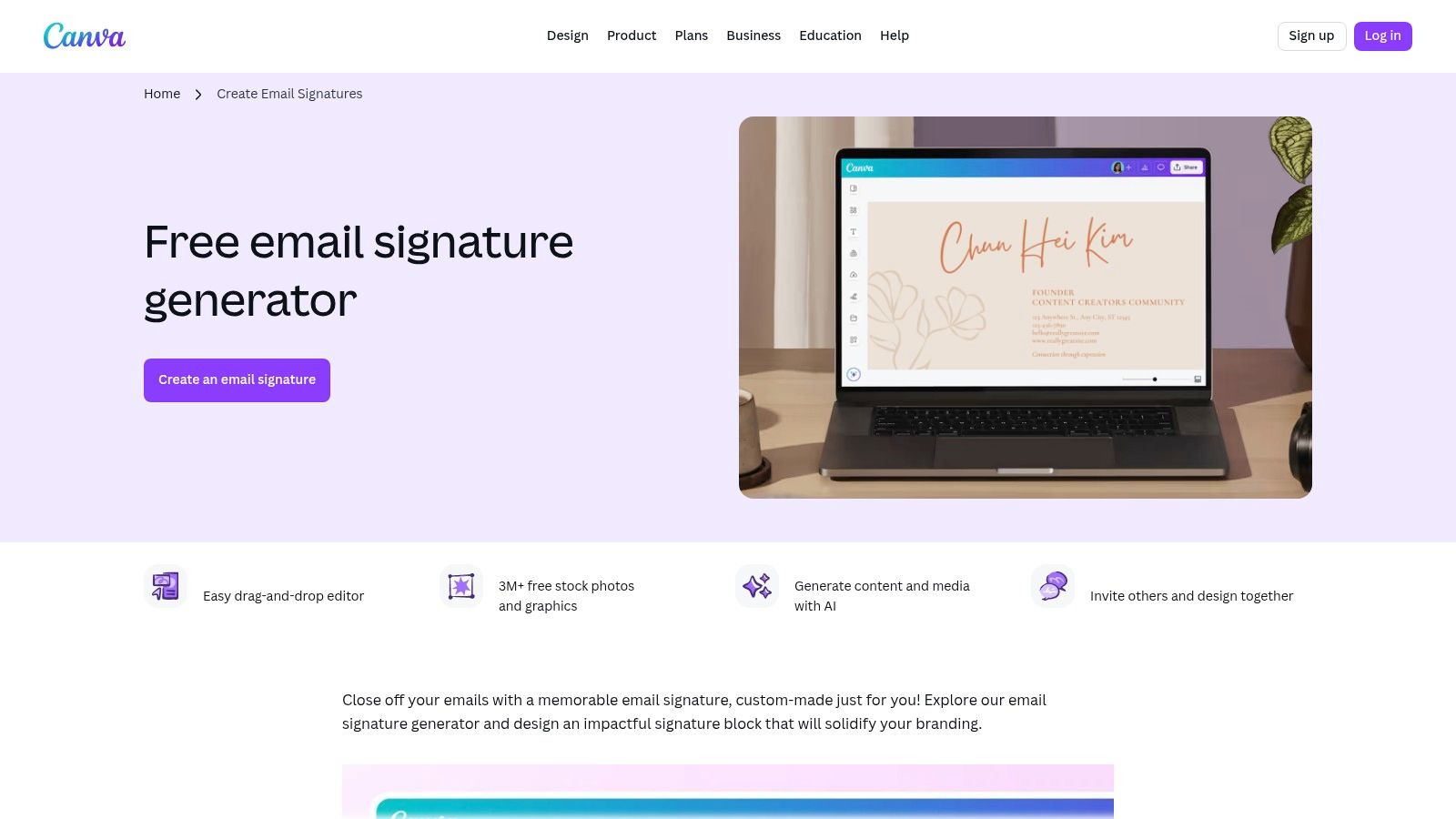
Canva has become the go-to design tool for millions, and for good reason. It offers an incredibly intuitive way to create a visually striking holiday email signature Christmas banner or a complete signature design from scratch. Its drag-and-drop interface, combined with a vast library of templates and festive graphics, makes it perfect for individuals and businesses who want full creative control without needing advanced design skills.
The platform excels at allowing users to quickly produce high-quality, on-brand seasonal assets. You can search its library of over three million graphics for Christmas-themed icons, illustrations, and photos to craft a unique signature banner. The collaborative editor is another major advantage, enabling marketing teams to work together on designs and ensure brand consistency across all holiday communications.
Key Offerings and Features
Canva's strength lies in its versatility and extensive asset library. It’s not just a signature maker but a complete visual design suite that can be used for this specific purpose. The free email signature generator provides a fantastic starting point with dozens of customisable templates.
Key features for creating your festive signature include:
- Massive Graphics Library: Access a huge collection of Christmas trees, snowflakes, wreaths, and other holiday elements to personalise your design.
- Collaborative Editor: Ideal for teams, this feature allows multiple users to comment on and edit a design in real-time, ensuring everyone is happy with the final result.
- Brand Kit: Paid users can store brand colours, fonts, and logos to quickly apply them to any new design, maintaining consistency.
- Flexible Export Options: You can download your finished signature as a high-quality JPG, PNG, or GIF file, ready to be inserted into your email client.
Practical Implementation
Using Canva to create a signature is a straightforward, visual process. Here's how:
- Choose a Template: Log in to Canva and search for "Email Signature." Browse the templates and find one with a layout you like. Or, create a custom design (a good size for a banner is 600 x 200 pixels).
- Customise Your Design: Add your professional details. Then, go to the "Elements" tab and search for "Christmas" or "holiday." Drag and drop festive graphics like holly, snowflakes, or a subtle Christmas tree onto your design. Adjust colours and fonts to match your brand.
- Download the Image: Once complete, click the "Share" button, then "Download." Choose "PNG" and select "Transparent background" for the cleanest look.
- Install and Add Links:
- Go to your email signature settings (e.g., Gmail Settings > General > Signature).
- Insert the downloaded PNG image.
- To add a clickable link (e.g., to your website), highlight the image and use the link tool to add the URL.
- Pro Tip: For multiple clickable icons (like social media), you will need an external tool to "slice" the image or use an HTML generator that supports image maps, as Canva exports a single flattened image.
Pros and Cons
| Pros | Cons |
|---|---|
| Free to Start: The free plan offers more than enough for most users. | Image-Based Exports: Signatures are images, making links less reliable. |
| Highly Flexible: Unmatched creative freedom to design a unique look. | Clickable Links are Tricky: Requires hosting the image to add hyperlinks. |
| Very Fast & Easy: Non-designers can produce professional results in minutes. | Gmail Hosting Issues: Pasting images directly can sometimes cause display problems. |
While Canva is a powerhouse for design, the final output is typically a static image file. This means that adding clickable social media icons or a call-to-action requires an extra step of hosting the image online and wrapping it in HTML. For those who value creative freedom above all else, Canva is an unbeatable choice. Discover how our team uses design to make an impact.
Website: https://www.canva.com/create/email-signatures/
Christmas Email Signature — Top 7 Comparison
| Solution | Implementation complexity 🔄 | Resource requirements ⚡ | Expected outcomes ⭐📊 | Ideal use cases 💡 | Key advantages |
|---|---|---|---|---|---|
| Mail-Signatures.com (by CodeTwo) | Low — DIY insertion with step-by-step Outlook/Gmail guides; no central management | Minimal — free downloads; manual per-user setup; watch GIF file size/weight | Professional seasonal signatures for individuals/small teams; reliable mobile/dark-mode previews ⭐⭐⭐ 📊 | Individuals or very small teams wanting no-cost, quick holiday signatures | No cost, fast implementation, mobile/dark-mode previews |
| Exclaimer | Medium–High — central design, policies and scheduling; requires admin setup 🔄 | Enterprise pricing / quotes; IT/admin involvement for deployment ⚡ | Consistent, centrally enforced signatures with scheduled campaigns; strong governance ⭐⭐⭐⭐ 📊 | Large organisations needing server-side, policy-driven signature control | Robust policy controls, server-side coverage, date/time campaign scheduling |
| WiseStamp | Medium — quick generator for individuals; team/server features require setup 🔄 | Tiered pricing; clear published plans; advanced features behind paid tiers ⚡ | Balanced visual quality and team management at SMB scale; analytics on higher tiers ⭐⭐⭐ 📊 | Freelancers to SMBs wanting easy seasonal banners plus optional central management | Large banner library, quick setup, directory sync and hybrid/server deployment |
| CodeTwo Email Signatures 365 | Medium–High — cloud-side insertion for Microsoft 365; admin configuration required 🔄 | Per-user pricing with trial; requires Microsoft 365 environment ⚡ | Strong centralized control, rule-based targeting and predictable rollout; analytics ⭐⭐⭐⭐ 📊 | Microsoft 365 organisations needing scalable, centrally managed signatures | Cloud-side insertion, Outlook add-ins, scheduling and targeting rules |
| NEWOLDSTAMP | Medium — central management and campaign setup; marketing-focused workflows 🔄 | Paid per-signature (annual); 7-day trial; requires admin time for campaigns ⚡ | Marketing-oriented signature campaigns with UTM/analytics; good reporting ⭐⭐⭐ 📊 | Teams/SMEs focused on signature marketing and campaign reporting | Balance of marketing features and ease of use; campaign/analytics support |
| Etsy | Low — instant-download templates; manual insertion or seller HTML workflow 🔄 | Very low one-off cost; no subscription; format quality varies ⚡ | Fast, affordable designer templates for one-off seasonal use; clickable elements often limited ⭐⭐ 📊 | Individuals wanting cheap, designer-made seasonal templates without subscriptions | Affordable, huge style variety, instant delivery (Canva-editable often available) |
| Canva | Low–Medium — visual editor and exports; requires hosting/HTML for clickable links 🔄 | Free to start; collaborative tools; exported images may need hosting ⚡ | Highly customizable visuals and team collaboration; image exports may limit clickability ⭐⭐⭐ 📊 | Teams/non-designers who want rapid visual design and collaboration | Extensive asset library, fast visual design, collaborative editor |
Making Your Final Choice and Scheduling Your Festive Signature
We’ve explored a fantastic range of tools and templates, from the powerful, centrally-managed solutions of Exclaimer and CodeTwo Email Signatures 365 to the creative flexibility of Canva and Etsy. Whether you’re a solo entrepreneur needing a quick, festive touch or a marketing manager orchestrating a company-wide campaign, the perfect holiday email signature christmas tool is within your grasp. The key takeaway is that a well-crafted festive signature is more than just a seasonal decoration; it's a strategic touchpoint for brand reinforcement, customer engagement, and even direct sales.
By incorporating subtle animations, clear calls-to-action for your holiday promotions, or simply a warm, professional greeting, you transform every email into a micro-marketing opportunity. The right signature not only spreads cheer but also demonstrates attention to detail and a modern approach to business communications, leaving a lasting positive impression on every recipient.
From Inspiration to Implementation: Your Action Plan
Now, it's time to turn inspiration into action. Selecting the right path forward depends entirely on your specific business needs, technical comfort level, and budget. To help you decide, let’s distil the options into clear use cases:
- For the DIY-savvy Solo Professional: If you're comfortable with basic design and want total creative control without a subscription, Canva is your ideal playground. You can craft a beautiful, bespoke signature banner and link it in your email client's settings. For a professionally designed but static option, browsing Etsy provides unique, affordable templates that you can easily customise with your details.
- For the Small Business Seeking Simplicity and Style: If you need a bit more guidance and want a professional look with minimal fuss, WiseStamp and NEWOLDSTAMP are excellent choices. Their user-friendly editors, wide array of templates, and easy installation processes make them perfect for small teams who want a polished and consistent holiday email signature christmas without a dedicated IT department.
- For the Organisation Needing Centralised Control: For larger businesses, especially those using Microsoft 365 or Google Workspace, consistency and compliance are paramount. Exclaimer, CodeTwo Email Signatures 365, and the free generator from Mail-Signatures.com (powered by CodeTwo) are the industry leaders. These tools allow you to design, deploy, and schedule signatures for your entire organisation from a single dashboard, ensuring every employee's email is on-brand and timely.
Scheduling and Testing: The Final Steps to Perfection
Choosing your tool is only the first step. Proper planning ensures your festive signature has the maximum impact without becoming outdated.
- Plan Your Timeline: Aim to have your signature designed and ready by late November. Schedule it to go live on the 1st of December.
- Set an End Date: The magic of the holiday season fades. Use the scheduling features in tools like Exclaimer or CodeTwo to automatically revert to your standard signature in early January. If you're implementing it manually, set a calendar reminder for the first week of the new year to make the switch.
- Test, Test, and Test Again: Before your signature goes live to the world, conduct thorough testing. Send test emails to various clients (Gmail, Outlook desktop, Apple Mail) and check them on different devices (desktop, tablet, smartphone). Look for formatting errors, broken images, or links that don't work. A broken signature looks unprofessional and negates all your hard work.
By thoughtfully selecting your tool and meticulously planning your launch, your holiday email signature christmas will become a seamless and effective part of your seasonal marketing, delighting clients and reinforcing your brand's personality with every single message you send.
While your signature adds a festive touch to one-to-one emails, don't forget your wider audience. Complement your personal outreach with beautifully designed holiday newsletters and promotional campaigns using Astonish Email. Our platform makes it simple to create and schedule stunning, mobile-friendly emails that will captivate your customers and drive seasonal sales. Discover how Astonish Email can amplify your holiday marketing today.