Email Size Limit A Practical Guide for UK Businesses
December 4, 2025
You've probably heard that the standard email size limit is about 25 megabytes (MB). It's a number that gets thrown around a lot, but honestly, it’s dangerously misleading. The real maximum size is dictated by a simple, often overlooked rule: your email is only as big as the smallest limit between your provider and your recipient's.
That means your perfectly crafted 25 MB email can still bounce back if the server on the other end only accepts 10 MB.
Why the 25 MB Email Size Limit Is a Myth
It's a common misconception, this idea of a universal 25 MB limit. For any business, treating it as a hard and fast rule is a recipe for frustration. The reality is, there's no single standard governing email size across the internet. Sending an email isn’t like a direct file transfer; it’s more like posting a parcel.
Think of it this way: you take a package to your local post office in the UK, and they happily accept parcels up to 30 kg. Great. But if you're sending it to a country where their national postal service has a strict 10 kg limit, your parcel will be rejected the moment it arrives at its destination. It doesn't matter that your post office accepted it—the weakest link in the chain broke the delivery.
That’s exactly how email size limits work.
The Real-World Impact on UK Businesses
For a small business in the UK, this invisible barrier is the culprit behind countless bounced emails and communication breakdowns. A failed email isn't just a minor tech hiccup; it can have real consequences:
- Project Delays: That crucial design file or project proposal never reaches the client, bringing everything to a standstill.
- Client Frustration: Your client is left waiting for documents they never received, leading to confused phone calls and a loss of confidence.
- Lost Opportunities: A time-sensitive quote or contract bounces, and you might lose the sale before you even realise there was a problem.
Getting to grips with this dynamic is vital for reliable business communication. We've put together a quick reference table showing the limits for some of the most popular email providers in the UK.
Quick Guide to UK Email Provider Size Limits
This table gives you a snapshot of what to expect from major email services. Notice how they vary—it’s why assuming a single limit is so risky.
| Email Provider | Maximum Email Size | Important Notes for Business Users |
|---|---|---|
| Gmail | 25 MB | Anything larger must be sent as a Google Drive link, which is handled automatically. |
| Outlook.com | 20 MB | For larger files, Outlook prompts you to use its integrated OneDrive cloud storage. |
| Yahoo Mail | 25 MB | Similar to Gmail, Yahoo encourages cloud storage for files that exceed the limit. |
| Apple iCloud Mail | 20 MB | Apple's Mail Drop feature allows sending attachments up to 5 GB via iCloud. |
| Microsoft 365 | 150 MB (Default) | While the default is high, administrators can (and often do) set much lower limits. |
As you can see, the advertised limits are often just the starting point. The real story is always in the fine print and the hidden constraints of your recipient’s system.
A New Way to Think About Email Size
The trick is to change your mindset. Stop focusing on a single number and start thinking of email size as a negotiation between your server and every other server it has to pass through. Even when looking at unlimited email hosting solutions, remember that these real-world delivery constraints are always in play. "Unlimited" storage for you doesn't mean unlimited acceptance for your recipient.
The most important limit is not your own—it's the lowest limit anywhere in the delivery chain. For guaranteed deliverability, a conservative approach is always the safest bet.
Once you understand this system, you can learn to work within it, making sure your important messages and files always get where they need to go.
How Attachments Secretly Grow in Size
Have you ever tried to send an email with a 20 MB file attached, only for it to be rejected by a 25 MB limit? It’s a frustratingly common problem. The issue isn't a glitch with your email provider; it’s because email attachments actually grow in size the moment you press 'send'. This hidden expansion can inflate your files by as much as 33%.
This behind-the-scenes growth is down to something called MIME (Multipurpose Internet Mail Extensions) encoding. Back in the early days, email was only built to handle plain text. To send anything else—like images, PDFs, or spreadsheets—the system first has to translate that file into a text-based format it can understand.
It helps to think of it like shipping a delicate glass sculpture overseas. You wouldn’t just pop it in a box. You’d carefully wrap it in layers of bubble wrap, surround it with packing peanuts, and seal the whole thing with heavy-duty tape. The final package is a lot bigger and heavier than the sculpture itself. MIME encoding is the digital equivalent of that protective packaging, wrapping your files in code that adds extra weight.
The True Weight of Your Email
This encoding overhead is precisely why a file's size on your computer is never the same as its size in an email. A good rule of thumb is to assume any file will grow by about one-third during the encoding process.
- A 10 MB PDF becomes roughly 13.3 MB.
- A 15 MB presentation inflates to nearly 20 MB.
- A 20 MB design file can easily swell to over 26 MB, tripping the common 25 MB email size limit.
It’s this unexpected size jump that causes so many perfectly good emails to bounce back, as you can see in the diagram below.
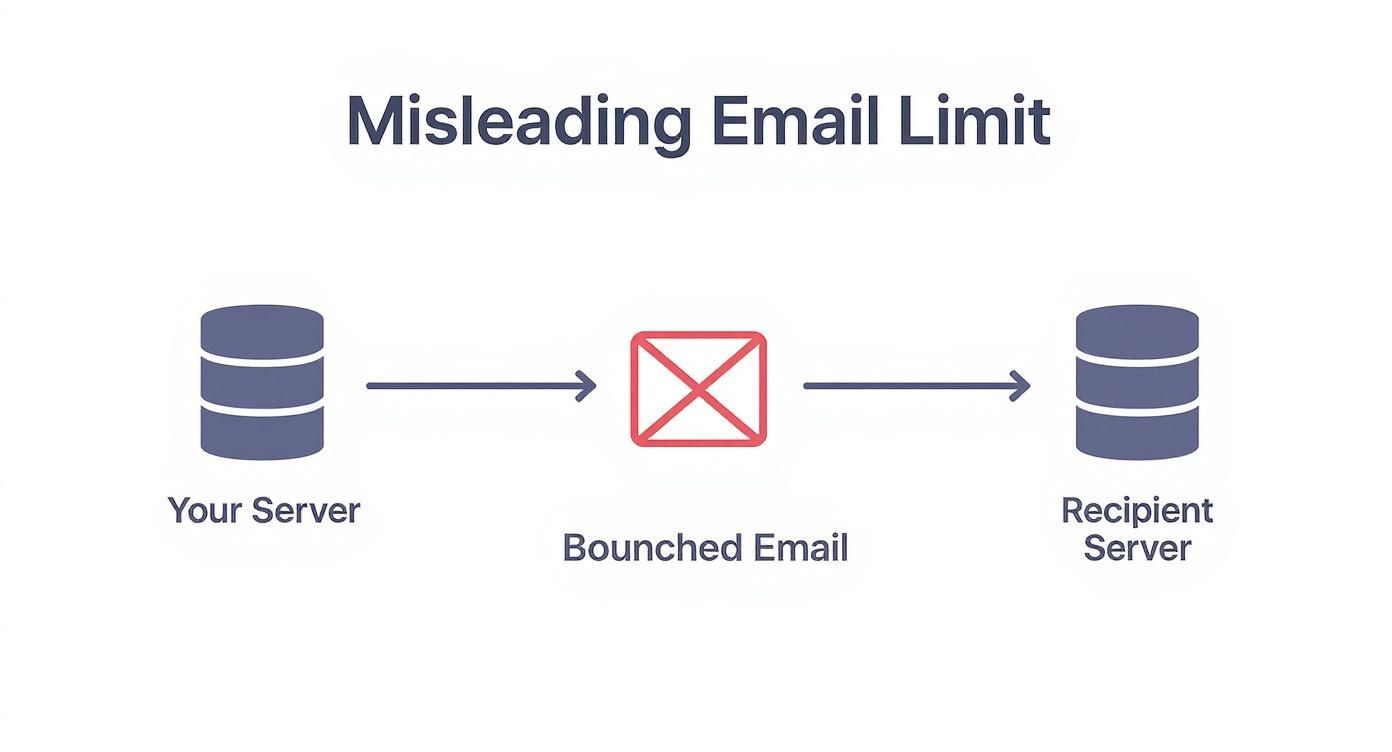
The image shows how an email that leaves your server without a problem can still be rejected by the recipient's server if the final, encoded size is too large for them to accept.
More Than Just Attachments Add Size
The main attachment isn't the only thing contributing to your email's total weight. Several other elements add to the final size, often catching people by surprise. Getting a handle on these hidden extras is crucial for keeping your emails lean and making sure they land in the inbox.
Every part of your email adds to its total size, from the formatting in your signature to the images embedded in the body. It’s the final, encoded total that determines whether it is delivered or bounced.
Here’s a quick rundown of other common culprits that add kilobytes to your email:
- Embedded Images: Pictures you've placed directly in your email signature or the body of the message get encoded just like attachments, adding significant weight.
- Rich Text Formatting (HTML): All that bold text, fancy fonts, different colours, and layout styling relies on HTML code, which adds to the file size.
- Email Headers: Every email carries hidden data about the sender, recipient, and the route it took across the internet. It’s a small amount, but it all adds up.
Once you start accounting for this "digital packaging," you can make smarter decisions about what you attach and how you format your messages, stopping delivery failures before they even happen.
Avoiding the Dreaded 'Message Clipped' Warning in Gmail
You've crafted the perfect email, it’s landed in the inbox... but what if your customer can't actually read it all? This is a real risk with one of the most frustrating quirks in the email marketing world: Gmail's infamous 102 KB size limit.
It’s a tiny threshold, but crossing it has big consequences. Gmail will abruptly chop off the end of your email, hiding it behind a "[Message clipped]" link. This isn’t just a bit untidy; it can completely derail your campaign. The clipped part often contains the most important bits – your call-to-action, your special offer, and, crucially, the legally required unsubscribe link.
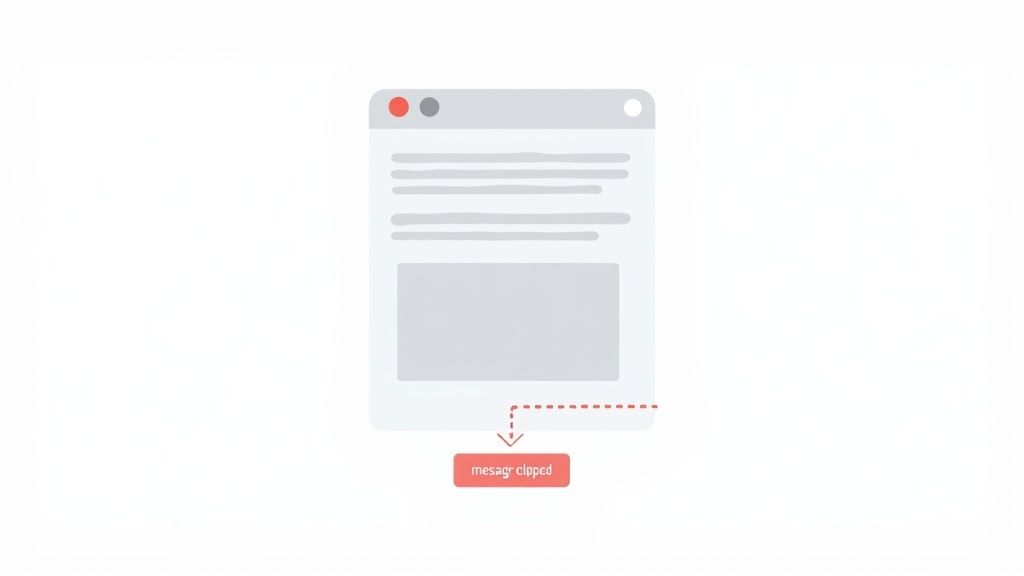
This 102 KB limit doesn't count your images or attachments. Instead, it’s all about the size of the underlying HTML code that builds your email. Every font style, every layout block, and every tracking pixel adds to this total. For small UK businesses using drag-and-drop builders, it's surprisingly easy to pile on the code without even realising it.
How to Prevent Your Emails from Being Clipped
The good news is that staying under the limit is fairly simple once you know what to look for. It all comes down to good 'code hygiene'. Keeping your email’s structure clean and simple doesn't just prevent clipping; it also helps your emails load faster and look great on any device.
Here’s a quick pre-flight checklist to keep your HTML size in check:
- Check the Size Before You Send: Don't guess. Most good email platforms, including Astonish Email, let you send a test to yourself.
- Step 1: Send a test version of your campaign to a personal Gmail account.
- Step 2: Open the email in Gmail. Click the three vertical dots (More options) next to the reply arrow.
- Step 3: Select "Show original" from the dropdown menu.
- Step 4: A new tab will open showing the raw email data. The total size in kilobytes will be displayed at the top. If it's over 102 KB, you need to trim it down.
- Keep Your Code Clean: Avoid the temptation to copy and paste text directly from programs like Microsoft Word or Google Docs. They sneak in a mountain of messy formatting code that will quickly bloat your email.
- Step 1: Copy your text from its source document (e.g., Word).
- Step 2: In your email editor, find the "Paste as plain text" option (often a clipboard icon with a 'T'). Use this to paste your content.
- Step 3: Apply all styling (bold, italics, headings) using your email editor's built-in tools. This creates much cleaner, lighter HTML code.
- Host Your Images, Don't Embed Them: Embedding images directly into the email code (a method called Base64 encoding) is a guaranteed way to make your HTML file massive. The right way is to upload your images to a server—either your email provider's or your own—and simply link to them in the email. This keeps the code itself incredibly light.
Our advice: Aim to keep your HTML file under 100 KB. This gives you a little bit of breathing room and all but guarantees that every single subscriber on Gmail sees your full message, from the catchy headline right down to the unsubscribe link.
Making these simple checks part of your routine is one of the easiest wins in email marketing. It protects your brand's professional image and makes sure your hard work actually gets seen.
How Email Size Can Damage Your Sender Reputation and Security
Sending a huge email isn't just a technical headache; it's a gamble with your brand's reputation. When you repeatedly send out bulky messages, you're not just bumping up against server limits. You're also sending up a flare that gets noticed by Internet Service Providers (ISPs) and their ever-watchful spam filters.
Why the suspicion? Spam filters are all about pattern recognition, and one of the oldest tricks in the book for delivering malware or launching a phishing attack is to hide it in a large attachment. Because of this, filters are naturally wary of them. If your business regularly sends emails that flirt with the email size limit, ISPs might start to see your domain as a bit of a risk. This is how your sender reputation—the score that decides if you hit the inbox or the junk folder—slowly starts to crumble.
Once your reputation is damaged, even your perfectly normal, everyday emails have a much higher chance of being flagged. To get a better handle on keeping your sender score healthy, it's worth reading through our comprehensive anti-spam policy.
The Security and Compliance Angle for UK Businesses
Beyond just getting your emails delivered, keeping an eye on their size is a fundamental part of data security and regulatory compliance. For any small business in the UK, attaching large files with sensitive client information to an unencrypted email is a major security blunder. It leaves that data exposed while it’s in transit and creates risks you just don’t need to take.
This practice also bumps up against UK GDPR. Good data governance means having a firm grip on how client information is stored, shared, and archived. Massive, unwieldy email attachments make that whole process a nightmare.
A disciplined approach to email size isn't just technical housekeeping. It's a cornerstone of your data governance strategy, protecting both your business and your clients.
It's a real-world issue, too. The UK Business Data Survey found that 65% of large enterprises had to deal with subject access requests that involved digging through email records. This really drives home why controlled email sizes and diligent data management are so important for archiving, auditing, and staying on the right side of laws like UK GDPR. You can dig into more UK business data trends on GOV.UK.
Practical Steps to Protect Your Reputation
Thankfully, protecting your sender score and staying compliant doesn't have to be complicated. If you start thinking about email size as a strategic choice rather than an afterthought, you can sidestep these deliverability and security problems before they even begin.
Here’s a simple guide to get you started:
- Set an Internal Policy: Get everyone on the same page by agreeing on a sensible internal email size limit, something like 10 MB, for all company emails.
- Example Action: Create a one-page document outlining the policy. State that all files over 10 MB must be shared via the company's approved cloud storage service (e.g., OneDrive, Google Drive). Add this to your employee onboarding process.
- Audit Your Attachments: Before hitting 'send', just ask: is this attachment essential? Could the information be summed up in the email itself, or better yet, shared with a secure link to a cloud file?
- Example Scenario: Instead of attaching a 15 MB product catalogue PDF, upload it to cloud storage and write in the email: "You can view our latest catalogue here: [link]." This is faster for the recipient and avoids clogging their inbox.
- Default to Cloud Links: Make it second nature. For any file bigger than 5 MB, use a service like Google Drive, OneDrive, or Dropbox. It keeps your emails lean, your data more secure, and your recipients happy.
Smart Ways to Send Large Files without Hitting Limits
We’ve all been there. You’ve got a crucial file to send, a deadline is breathing down your neck, and you’re hit with that dreaded “message too large” error. It’s a frustrating roadblock, but the good news is you don’t need to be a tech whiz to get around it.
It's really just a case of swapping out the old-school attachment method for a couple of smarter, more reliable approaches. We'll walk through two main strategies: compressing your files to shrink them down, and using cloud storage to skip the attachment process altogether. Getting these right will completely change how you share large documents and media.
The Art of File Compression
When your file is just a little bit over the limit, compression is often the quickest fix. Think of it like a vacuum-seal bag for your data—it intelligently removes bits of redundant information to shrink the file's overall size without actually damaging what’s inside. The most common way to do this is by creating a ZIP file.
The best part? You don't need any special software. The ability to create a ZIP file is already built into both Windows and macOS.
How to Create a ZIP File on Windows
- Find the file or folder you need to send.
- Right-click on it.
- From the menu, point your cursor to Send to.
- Choose Compressed (zipped) folder. A new ZIP file with the same name will pop up right next to the original.
How to Create a ZIP File on Mac
- Navigate to the file or folder you want to shrink.
- Right-click (or hold Control and click) on the item.
- Select Compress from the menu that appears.
- A fresh .zip archive will be created in the same location.
Pro Tip: Compression works wonders on text-heavy files like PDFs, Word documents, and spreadsheets. You’ll see a significant size reduction. However, images and videos are often already compressed, so zipping them might not shrink them much further. For those big media files, our next method is the way to go.
Using Cloud Storage for Ultimate Flexibility
Honestly, the most professional and foolproof way to send large files is to stop attaching them to emails completely. Instead, you upload the file to a secure cloud storage service and then just share a simple link in your email. This keeps your email incredibly small and light, guaranteeing it will never get blocked by an email size limit.
Services like Google Drive, Dropbox, and OneDrive are perfect for this. The process is straightforward and gives you much more control over your files, letting you decide who can view, comment on, or edit them.
Step-by-Step Guide to Sharing via Cloud Link
Let's use Google Drive as an example, but the steps are virtually the same for any other cloud service.
Upload Your File: Open your Google Drive account, click the + New button, and select File upload. Now, just pick the large file from your computer and let it upload.
Generate a Shareable Link: Once it’s uploaded, right-click on the file inside your Drive and choose Share. This will open up the sharing options.
Set the Correct Permissions: This is the most important step! Under the "General access" section, you need to change the setting from "Restricted" to Anyone with the link. This is what allows your recipient to open the file without getting stuck on a permissions error. You can also decide if they should be a "Viewer," "Commenter," or "Editor."
Copy and Paste the Link: Click the Copy link button and simply paste it into the body of your email. That’s it! Your recipient clicks the link and gets instant access to the file.
This method is a true win-win. Your email is guaranteed to land in their inbox, and your recipient gets easy access without having to download a massive attachment. Of course, many platforms like Astonish Email integrate these modern workflows to make communication even smoother.
It’s also worth asking if the entire document is needed. Sometimes, all a client or colleague needs are the key takeaways. For instance, you could learn how to effectively summarize documents like PDFs to provide a concise brief instead of sending a huge file.
Right then, let's put all this into practice. Before you press that big ‘send’ button, it’s always worth running through a quick final check. Think of it as your pre-flight inspection to make sure your email lands perfectly every time.
Getting this right isn’t just about avoiding error messages; it’s about making sure your communication is professional, reliable, and respectful of your recipient's inbox.
Your Final Pre-Send Checklist
- Aim for Under 10 MB. Always. For maximum compatibility across every email server out there, make sure the total size of your email stays below 10 MB. This is your golden rule for avoiding bounces.
- Zip It Up. Get into the habit of compressing any files before you attach them. Whether it’s a PDF, a set of images, or a presentation, bundling them into a ZIP file is a simple step that works wonders.
- Link, Don't Attach. If you have a hefty file to send—anything over 5 MB, really—don't attach it. Instead, upload it to a secure cloud service like Google Drive or Dropbox and share the link. It’s cleaner, safer, and your recipients will thank you.
- Watch That Marketing Email Code. Sending out a campaign with Astonish Email? Double-check that the HTML file size of your template is under 102 KB. It’s the secret to stopping Gmail from cutting off your message with that dreaded "[Message clipped]" link.
Sticking to these simple rules means your emails get delivered more reliably, your data stays more secure, and you provide a much better experience for your customers and partners. It's a small effort for a big improvement.
Frequently Asked Questions About Email Size
Trying to figure out email size limits can feel a bit like guesswork, full of hidden rules and frustrating bounce-backs. Let's clear up some of the most common questions we hear from UK businesses, so you can send your emails with confidence.
What Is the True Maximum File Size I Can Email?
This is the million-dollar question, but the answer isn't a single number. The real limit is set by the lowest common denominator—the smallest size limit between your email server and your recipient's server.
So, while your own service might let you send a 25 MB file, if your customer's inbox only accepts 10 MB, your email will bounce right back. To be absolutely safe and guarantee delivery, it's always best practice to use a cloud storage link for any file over 10 MB.
Does Sending a Large Email Make It Deliver Slower?
Yes, it definitely can. Think of it like posting a large parcel versus a letter. A bigger email simply takes more server power to process, scan for security threats, and transfer across the internet.
While a few extra megabytes might only create a split-second delay, a hefty attachment can cause noticeable lags. This is especially true when you're sending a campaign to a big list of subscribers, as the server has to do that heavy lifting for every single recipient.
Do Different Rules Apply When Emailing Multiple People?
The size limit applies to each individual email, not the total batch. If you send a 15 MB email to 100 people, the server is processing one hundred separate 15 MB emails.
The main thing to watch out for here is server strain. Sending one massive email to hundreds of recipients at once can put a lot of pressure on your mail server. This kind of activity can sometimes be flagged by spam filters as suspicious, which could harm your sender reputation over time. That’s why you should always use a proper email service provider for any kind of bulk sending.
Keep in mind that managing email size is also an important part of good data governance. You can learn more about our data retention policy here to see how this works.
By keeping these simple principles in mind, you can steer clear of the usual traps and make sure your communications always land professionally and reliably.
Ready to send brilliant, hassle-free emails that always get delivered? With Astonish Email, you can create stunning campaigns, manage your contacts effortlessly, and track your results in real-time. Start your free plan today and see how easy it can be.